
About the Work Planner Screen
The Work Planner screen is used to assign and unassign work after bidding but before daily service is activated.
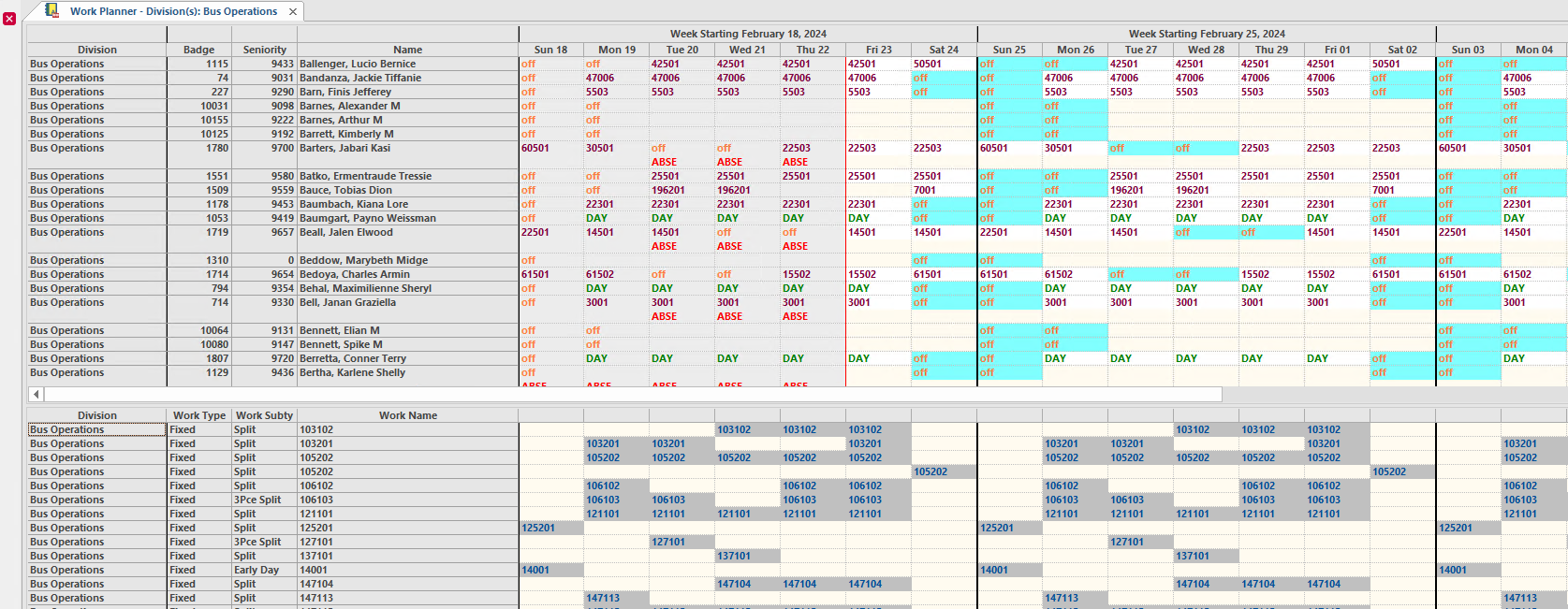
Activated days are shown in gray. To update these days, you must use the Daily Activity screen.
- Assign rosters to operators
- Assign individual pieces of work to operators
- Unassign work
| Method | Description |
|---|---|
| Regular Assignment | Allows you to select an employee and assign them a roster. |
| Advanced Assignment |
Allows you to do the following:
|
When assigning a roster, the system automatically assigns the associated bid unit to the employee.
Pieces of work can also be assigned to employees using the Work Planner screen. For example, if an employee is going to be away for one day in the following week, the work can be assigned to another operator. When assigning a piece of work to an employee in the Work Planner screen, no bid unit is associated with the work because the assignment occurs outside of the bidding process. You can right-click to set a bid unit for the employee’s work.
If you try to assign work that would violate work assignment rules, Trapeze OPS gives warnings or error messages. Work that violates warning thresholds can be assigned, but work that violates error thresholds cannot be assigned. Work assignment rules are defined by your transit agency. Yellow icons indicate that an assignment would violate warning thresholds and red icons indicate that an assignment would violate error thresholds.
- Assign work to inactive employees
- Change work assignments from a locked bid
- Assign extraboard work
- Assign work
- Assign a roster
- Assign a regular run (for operators currently assigned a holiday run)
- Clear work assignments an days off to the end of sign-up periods
- Replicate work to the end of sign-up periods
- Create a break (Demand Response only)
- Create absences
- Delete absences
- Create employee days off
- Delete employee days off
- Specify bid units
- Unassign work
- Create vacation relief work
- Delete vacation relief work
- Create hold-downs
- Delete hold-downs
- View work details