About Employee Absences
Absences are periods of time that employees are unavailable for their normal work and pay.
Employee absences can be planned (for example, vacations) or unplanned (for example, sick days). When determining the number of days off, the system checks the property to see how many days off should be included in the week.
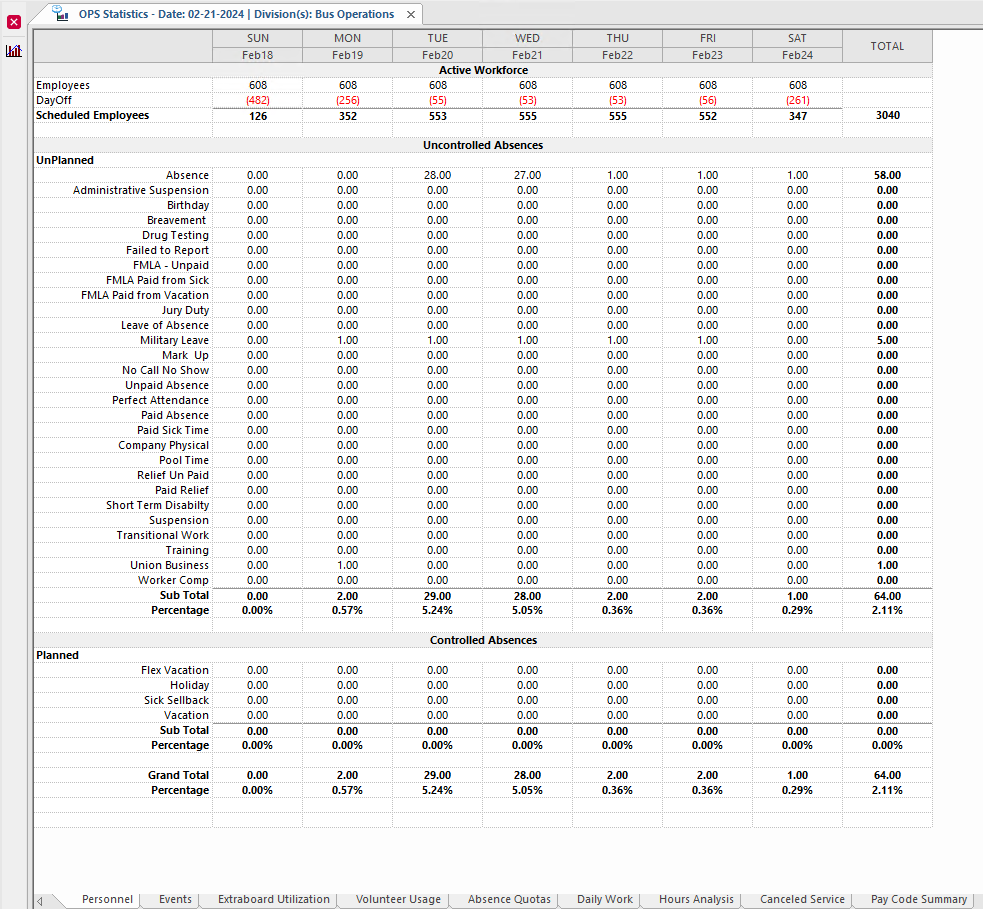
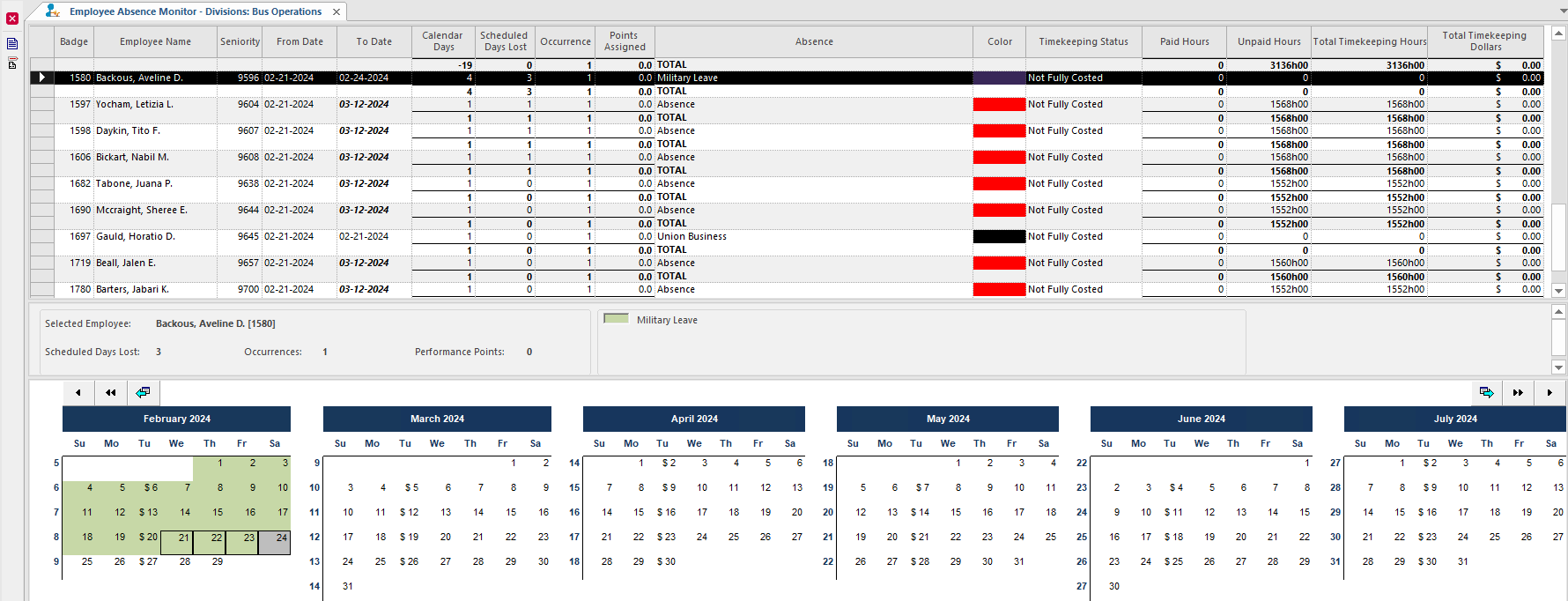
You can view employee absences in the Employee Profile screen and Employee Absence Monitor screen, create employee absences in the Employee Profile screen and Work Planner screen, and can review absence trends in the OPS Statistics screen.
Employee Profile Screen
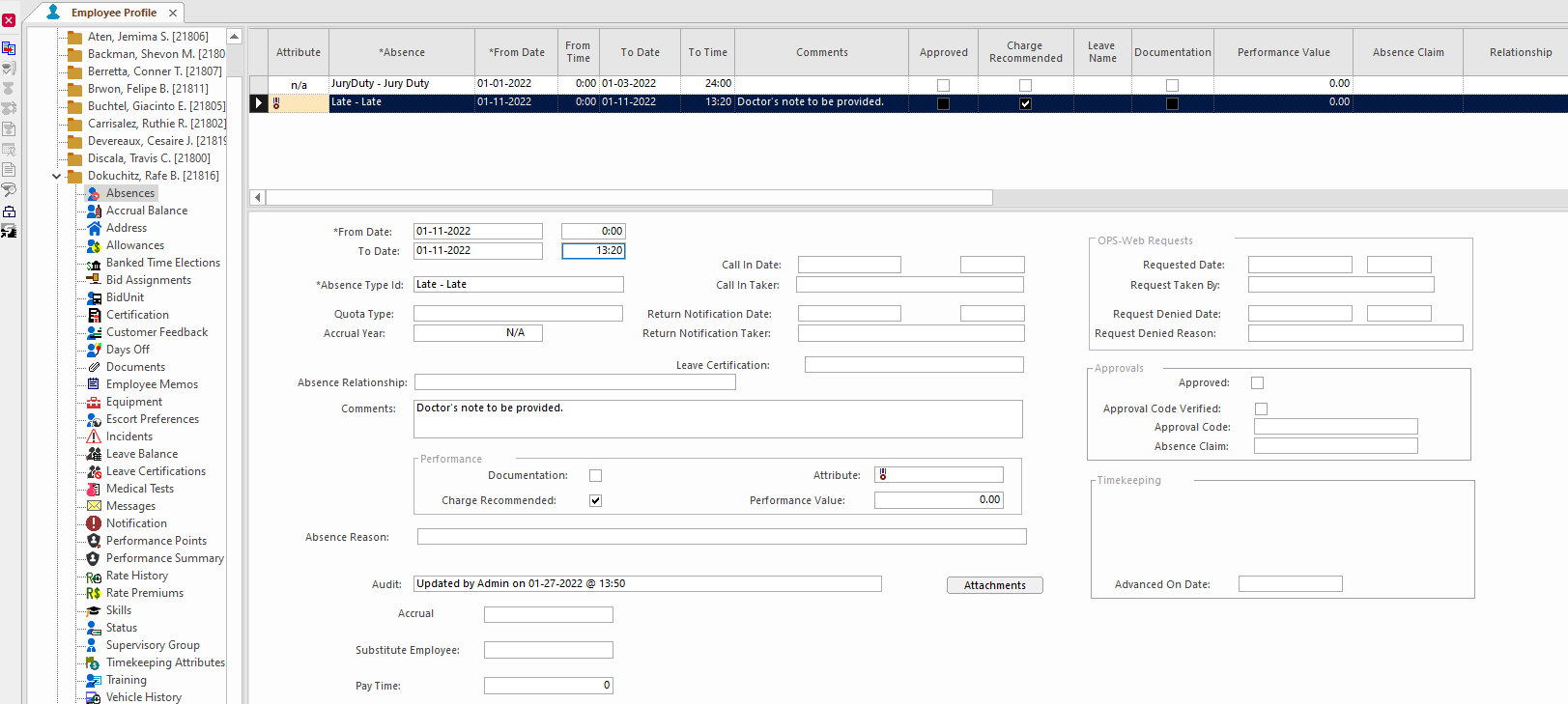
| Button | Label | Description |
|---|---|---|
 |
Clone Record | Creates a copy of the selected record. |
 |
Return To Work | Sets an end date for specific types of absences. This lets employees be assigned work again. |
 |
Performance Details | Opens the Performance Details dialog for records with the ribbon icon in the Attribute column. |
 |
Add Performance Details | Opens the Add Performance Details dialog for eligible records where the Attribute column is blank. |
 |
Performance Report | Opens the performance report. |
 |
FMLA Restriction | Defines a restriction period for the selected record. |
 |
Event Report | Opens the absence calendar for the employee. |
 |
Investigations | Opens an investigation for an incident. |
| Field | Description |
|---|---|
| Accrual Hierarchy | Accrual hierarchy for the absence. Available time will be used in the order
associated with the selected accrual hierarchy. Accrual hierarchy options are associated with the selected absence type in ancillary data. For more information about accrual hierarchies, see your Trapeze representative. |
| Approved |
If selected, the absence is approved.
Note: This is for
documentation purposes only. For employee absence requests that can be manually granted or denied, see About the Absence Requests Screen. Depending on system set up, absences may automatically be granted based on absence type. Granted absences appear in the Employee Profile - Absences grid. |
| Call In Date | Date the employee requested the absence. If the CallInFlag checkbox is selected for the absence type in ancillary data, the Call In Date, Call In Time, and Call In Taker fields are automatically filled when the absence record is created. |
| Call In Taker | Name of the person who received the employee’s absence request. If the CallInFlag checkbox is selected for the absence type in ancillary data, the name of the logged-in user is automatically entered in the field when the absence is created. |
| Call In Time | Time when the employee requested the absence. |
| Charge Recommended | Specifies whether disciplinary action is recommended for the absence type, according
to agency policy. If selected, disciplinary action is recommended. If you select Charge Recommended for an absence not associated with a performance type, the absence isn't used for performance management. However, your agency may use the checkbox for reporting purposes. |
| Comments | Additional information about the absence. |
| Documentation | If selected, documentation has been received for the absence. For example, a doctor's note. |
| Paid Hours | Number of paid hours in the absence. |
| Performance Points | Number of performance points associated with the absence. Used for point-based performance management. |
| Request Denied Date | Date the absence request was denied, if applicable. |
| Request Denied Reason | Reason the absence request was denied. |
| Request Denied Time | Time the absence request was denied, if applicable. |
| Requested Date | Date of the employee absence request. This field isn't used in conjunction with the Call In Date field. |
| Requested Time | Time of the employee’s absence request. |
| Request Taken By | Name of the person who recorded the employee’s absence request. |
| Return Notification Date | Date the employee reported a return to work date. The date must be later than the From Date. If the Return To Work Flag is selected for the absence type in Absence Types ancillary data, this field is automatically filled. However, you can enter a different value. |
| Return Notification Taker | Name of the user who recorded or received the employee’s return to work information.
If the Return To Work Flag is selected for the absence type in Absence Types ancillary data, this field is automatically filled with the user's login name. |
| Return Notification Time | Time when the employee reported a return to work date. If the Return To Work Flag is selected for the absence type in Absence Types ancillary data, this field is automatically filled. |
| Timekeeping Status | Specifies whether the absence has been costed. Fully Costed. All days in the absence have been costed. Partially Costed. Only some days in the absence have been costed or no end-date has been specified for the absence. Not Costed. No days in the absence have been costed. |
| Total Timekeeping Dollars | Amount of money paid for the absence. |
| Total Timekeeping Hours | Number of costed hours for the absence. |
| Unpaid Hours | Number of unpaid hours in the absence. |
Employee Absence Monitor Screen
About Creating Absence Records
You can enter planned absences from the Employee Profile screen and Work Planner screen.
Typically, short-term absences are entered using the Employee Profile screen and longer absences are entered in the Work Planner screen.
You can enter unplanned absences from the Daily Activity screen.
Employees can request absences directly using the Employee Self-Service Employee Information add-on module.
You can enter absences with or without an end date (an open-ended absence). If you enter an end date for an open-ended absence or enter an earlier end date for an absence, you can reassign bid work to the employee for days that are no longer included in the absence. To reassign work to an employee, the employee must have bid for the work and the day must be activated.
When you change or delete an absence associated with a hold-down, the hold-down can be deleted automatically by the system. A hold-down won't be automatically deleted if any days in the associated absence are activated or costed.
You can delete absences from the Employee Profile screen. If a performance management record has been created for an absence, you must remove the performance record before deleting the absence.
OPS Statistics Screen