
About the Employee Absence Monitor
The Employee Absence Monitor screen lets you see a calendar of employee absences for a defined date range.
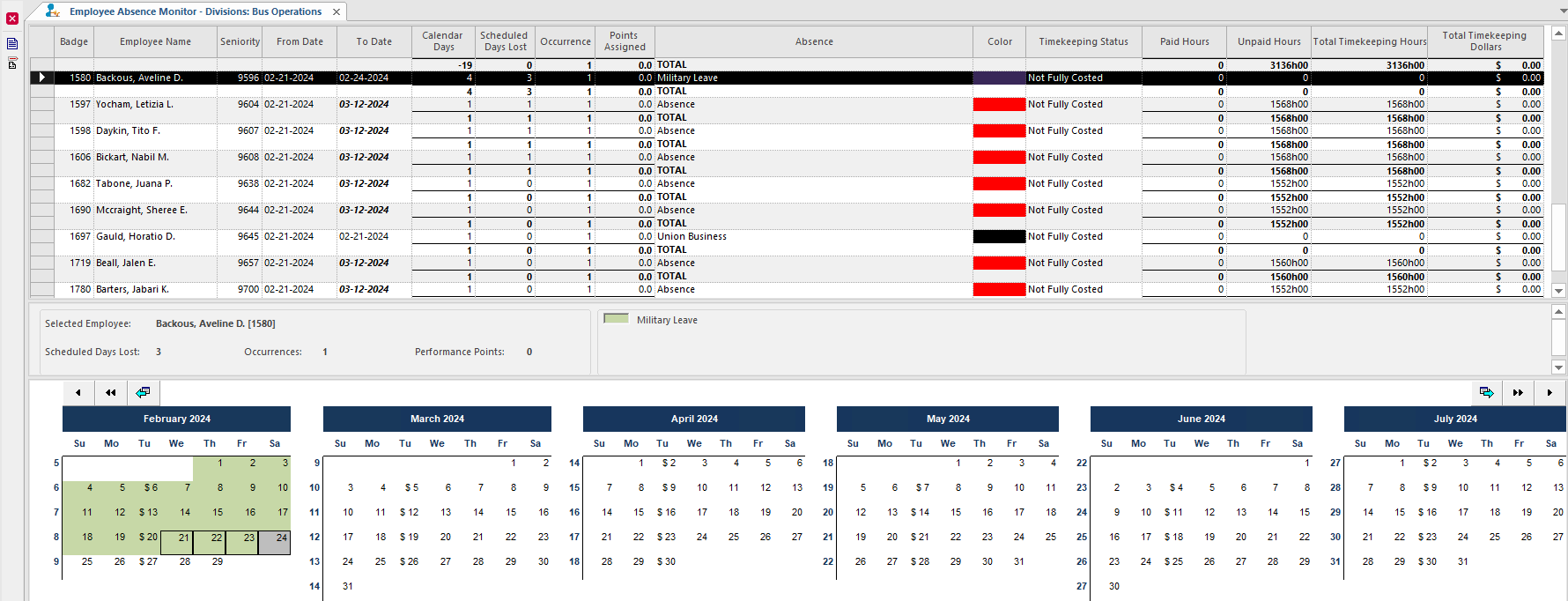
If your agency has performance management policies, you can use the Employee Absence Monitor screen to see if employees are close to requiring performance management activities. For example, checking to see how many absences an employee has had in the past 180 days.
The current date in the To Date column is shown in bold italics format to represent open-ended absences.
Dates marked with $ indicate employee pay days. Pay days are defined based on the , , and properties.
You can't create or edit absences in the Employee Absence Monitor screen.
| Pane | Description |
|---|---|
| Top Pane | Lists absences for one or more employees. The list is sorted by absence type or
reporting group for each employee, and includes timekeeping information for each
absence. The To Date column fields are empty when absences are open ended. |
| Middle Pane | Shows the name of the employee selected in the top pane, the number of scheduled work
days lost, the number of absence occurrences for each reporting group or absence type, and
the performance management points. A legend shows absence type colors in the calendar. |
| Lower Pane | The lower pane shows the selected employee’s absences in a calendar. Absences are color-coded by the reporting group associated with the absence type. |
| Button | Label | Description |
|---|---|---|
 |
Absence Calendar | Shows an employee’s absences for a calendar year. |
 |
Absence Detail | Provides detailed information for an absence. |
| Property | Description |
|---|---|
| Specifies count in days for the pattern Before or After DayOff for Employee Absence Monitor Screen. | |
| Specifies the default count in days for the pattern Before or After Holiday for Employee Absence Monitor Screen. | |
| Specifies the default count in days for the pattern Pay Date for Employee Absence Monitor screen. | |
| Specifies the default count in days for the pattern same date of the month for Employee Absence Monitor Screen. | |
| Specifies the default count in days for the pattern Same Day of the Week for Employee Absence Monitor Screen. | |
| Specifies how many days for Pay Date after the Pay Ending Date. Default is 3. | |
| Specifies the count in days for Number of Days After DayOff for any of the Absence Patterns. | |
| Specifies the count in days for Number of Days After Holiday for any of the Absence Patterns. | |
| Specifies the count in days for Number of Days Before DayOff for any of the Absence Patterns. | |
| Specifies the count in days for Number of Days Before Holiday for any of the Absence Patterns. | |
| Specifies the maximum limit in months for the date range size selectable within the Context. | |
| Specifies the absence display method: Absence Type or Reporting Group. | |
| If selected, absence comments will print on the Absence Calendar Detail page(s). This property works in conjunction with the property which must also be selected. | |
| If selected, details about each absence in the year appear following the absence calendar. Details include absence dates, types, times, reasons, and relationships. |