
Setting the Context for Employee Absence Monitor
Setting the screen Context (F3) shows and filters data related to your task.
-
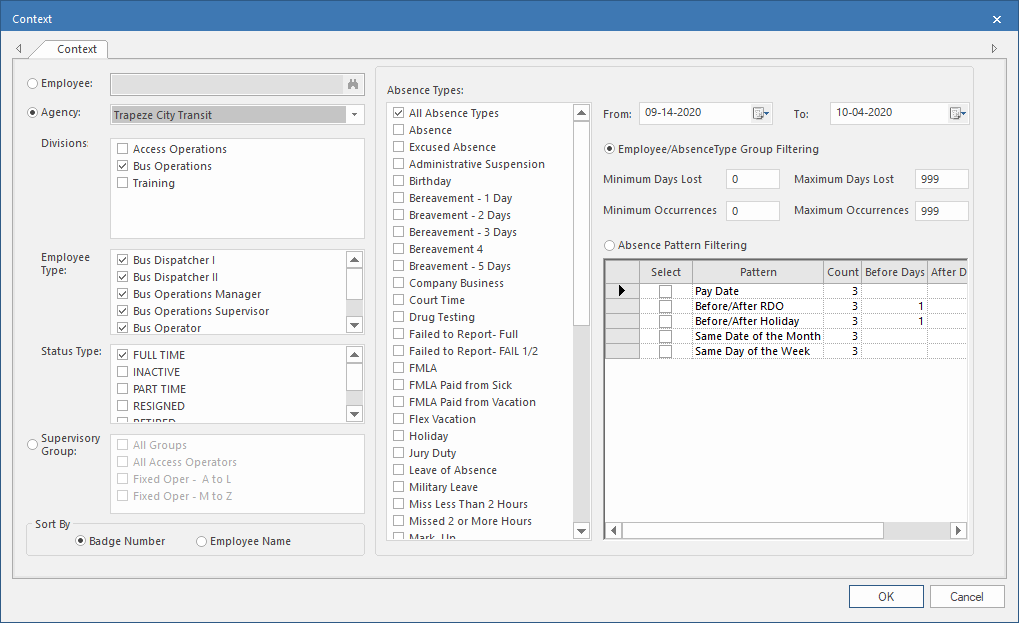
In the Employee Absence Monitor screen, open the Context
(F3).
To view absences for a specific employee:
- Select the Employee option.
-
In the selection field, enter:
- The first letter(s) of the employee's last name.
- Part or all of the employee's badge number.
A list of employees appears. - Double-click an employee name to select it.
To view absences for employees in a specific agency:
- Select Agency then the agency to view.
- Select the Divisions to include.
- Select the Employee Type(s) to include.
- Select the Status Type(s) to include.
To view absences for employees in specific supervisory
groups:
- Select the Supervisory Group option and then the groups to include.
After selecting the employee, agency, or groups to view:
- Select the Absence Types to show.
- Set the From and To dates.
You can apply either the Employee/AbsenceType Group
Filtering option or the Absence Pattern
Filtering option.
- Limit the information shown by setting the Employee/Absence Type Group filtering values.
-
View any specific patterns in employee absences by defining Absence
Pattern Filtering.
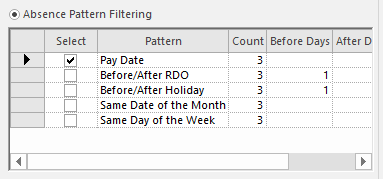
Default values for patterns are defined in Properties under .
If multiple patterns are selected, records that meet any one of the patterns are shown. For example, records that meet the Pay Date criteria or the Same Day of the Week criteria.
Note: Some absences span multiple days (for example, a week-long vacation). The entire absence may appear on the calendar even if only one day in the absence meets the criteria. For example, for a Same Date of the Month pattern.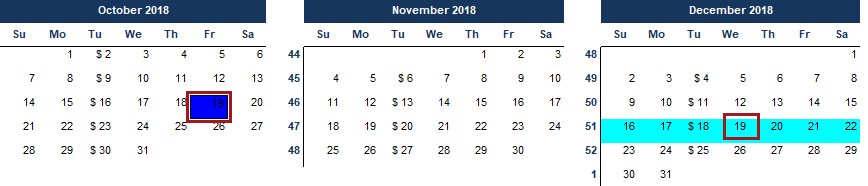
- Pattern
- Pattern looked for by the Employee Absence Monitor. For example, absences that occur before or after an employee's regular days off (Before/After RDO).
- Count
- Minimum number of occurrences within the defined From and To dates. If this minimum isn't reached, the employee record doesn't appear.
- Before Days
- Number of days to search for absences before the specified event (regular day off or holiday).
- After Days
- Number of days to search for absences after the specified event (regular day off or holiday).
- Specify how to sort employees by clicking either the Badge Number or Employee Name option.
- Select OK.