Viewing Absence Information in Employee Absence Monitor
A variety of absence-related actions can be performed in the Employee Absence Monitor screen, including viewing specific absences and getting more detailed information about employee absences.
- Open the Employee Absence Monitor screen and set the Context (F3).
-
To view an employee's absences in the calendar, select an employee in the top
pane.
The calendar in the lower pane shows the employee's absences. The middle pane shows employee data and absence information.
-
To find an absence in the calendar, select the absence in the top pane.
A black border appears around the absence dates in the calendar.
- To see absences for other months, select the left and right arrows at the top of the bottom pane.
-
To see the absence type or reporting group of an absence, hover over the
absence in the calendar.
A tooltip shows the information.
-
To see detailed information for an absence, select the absence in the top pane
and then select Absence Detail:

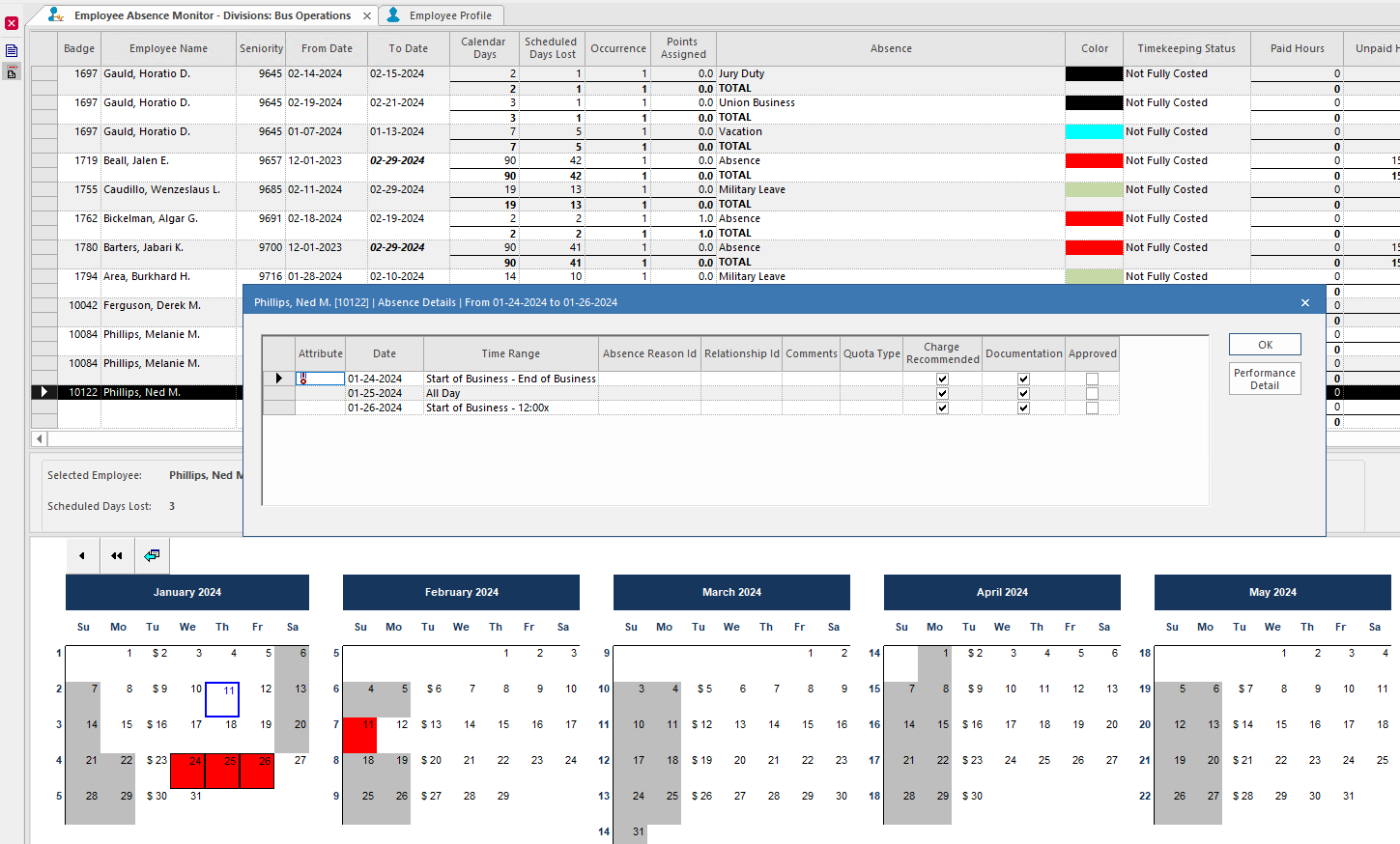
Select Performance Detail to see associated performance information.
-
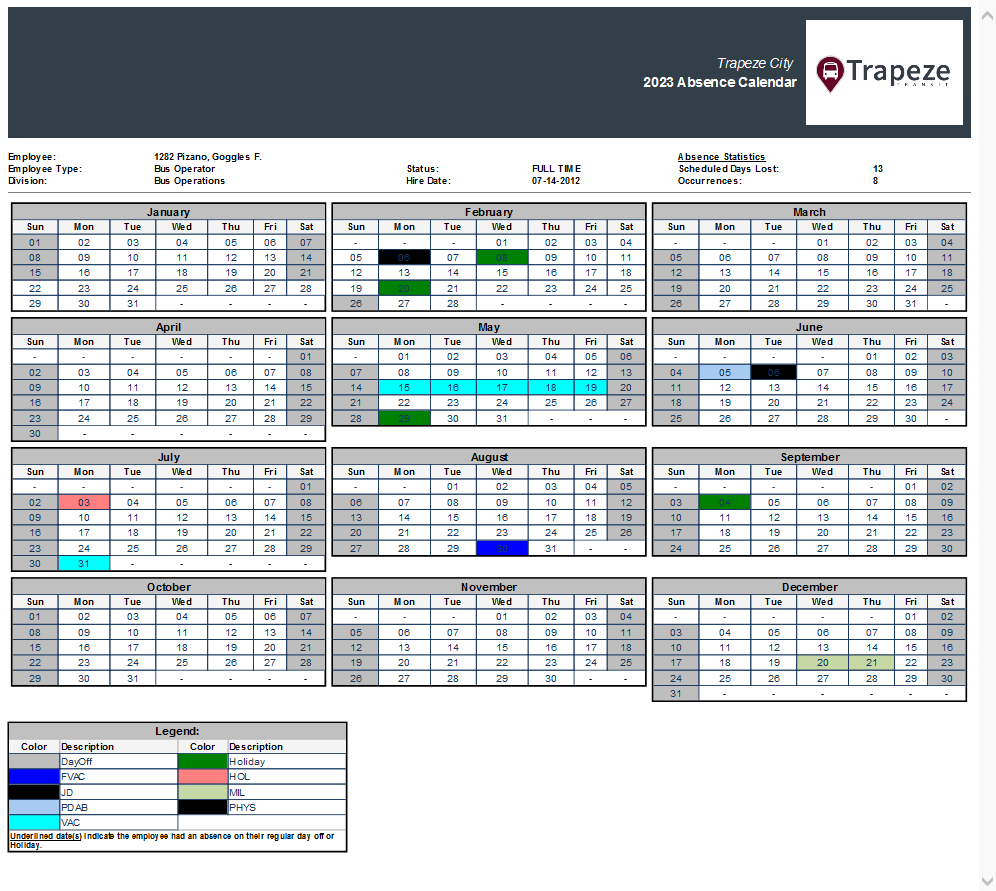
To see an employee's absences for a calendar year, in the top pane select an
absence for the employee that starts in the calendar year and then select
Absence Calendar:
 The absence calendar includes a color legend and a detailed list of the employee absences.