
Generating Absence Days and Requests for Multiple Employees
Generate absence requests for multiple employees for birthdays, seniority date anniversaries, or other dates in the Absence Generation screen.
-
Open the Absence Generation screen.
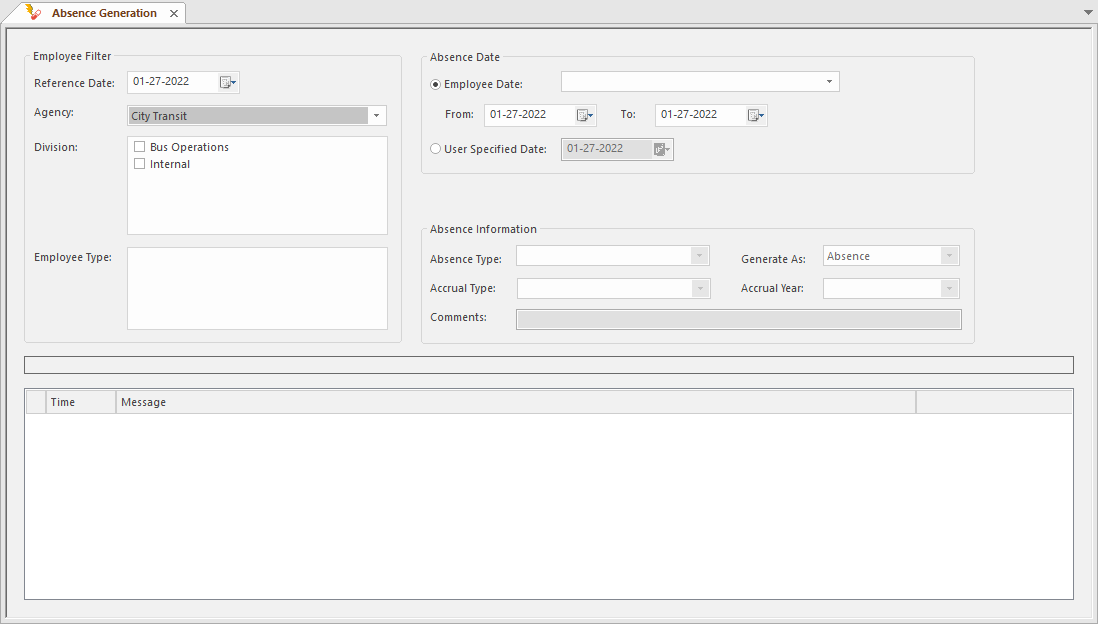
- Select the Agency, Division(s), and Employee Type(s) for which to create absences.
-
To generate an absence based on each employee's information:
-
Set a date range in the From and
To fields.
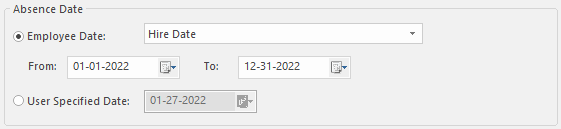
Absences are created in the selected date range for employees whose anniversary date for the selected date type falls in this range. For example, to give all employees an absence on their hire date anniversary in 2022, select Hire Date as the date type and specify a date range From 01-01-2022 To 12-31-2022.
If you use a date range From 06-01-2022 To 5-31-2023, absences are generated on anniversary dates from June 1, 2022 to May 31, 2023.
In both cases, you have specified a entire year so all employees are included, but not all absence will be taken in 2022.
-
Set a date range in the From and
To fields.
-
To generate an absence for all specified employees on a specific date:
- Select User Specified Date.
- Select the date.
- Select an Absence Type.
- In the Generate As field, select how you want the absence generated.
- Select the Accrual Type for the absence.
- Select the Accrual Year for the absence.
- Optional: Enter any Comments.
-
Select Absence Generation:
 A log shows messages for all eligible employees indicating whether absences were generated.
In the Absence Requests screen, any absence requests created using the Absence Generation screen are marked in the Source column with System.