
Setting the Employee Profile Context
Setting the screen Context (F3) shows and filters data related to your task.
-
In the Employee Profile screen, open the Context
(F3).
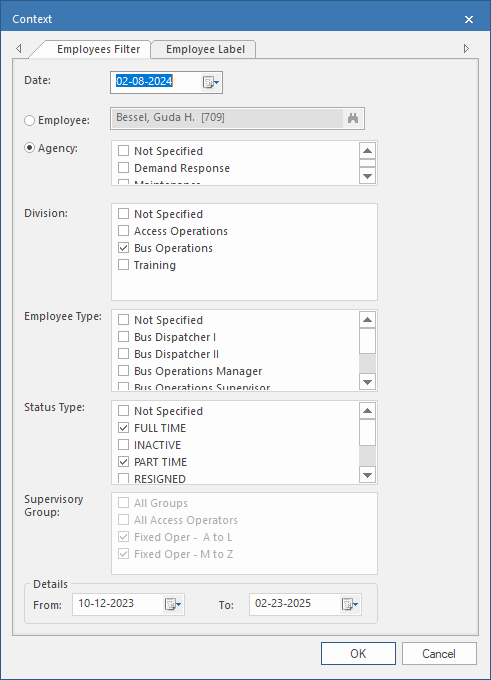
On the Employees Filter tab:
-
Enter a Date.
Only employees with a start date on or before this date are shown.
-
Select an Employee or an
Agency.
Select Not Specified for employees who aren't yet assigned.
-
If an Agency was selected, do the following:
-
In the Details section, select
From and To dates.
This restricts the amount of information shown in the employee record. The To date value doesn't filter out records that have no end date.
On the Employees Label tab:
-
Select the display format.
This controls the display of the employee's name and badge number in the left pane of the Employee Profile screen.
- Select OK.