
Viewing Client Trips
When you sign into PASS-Web G3, the screen shows the trips of the selected client in the form of a list (list view) by default.
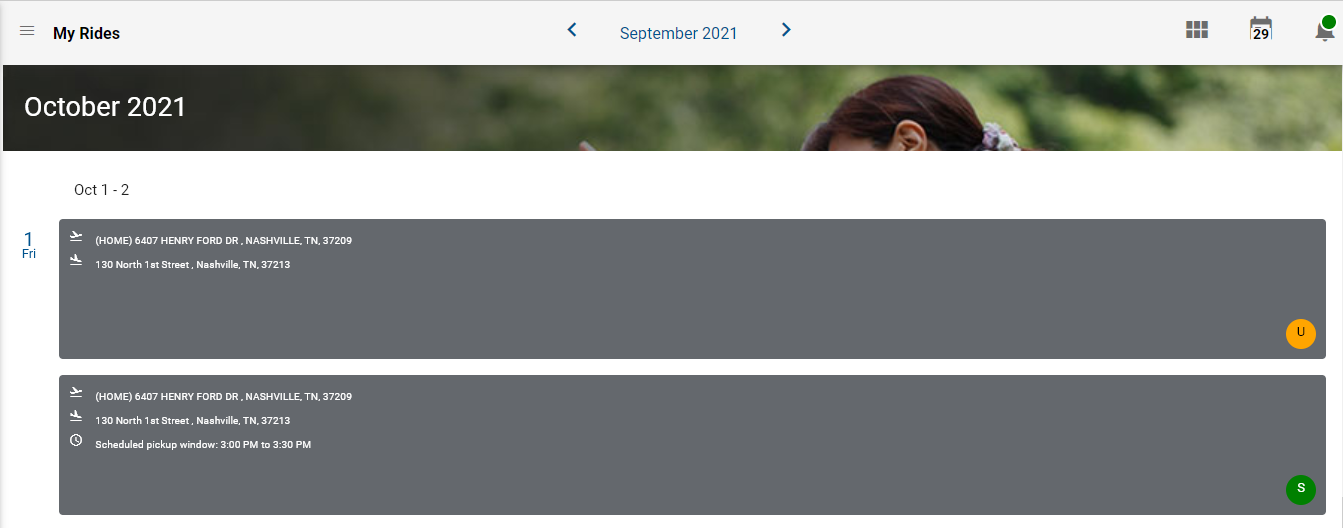
-
(If you are assigned multiple clients) To view the trips of another client
assigned to you, click Clients in the Navigation
pane.
The Clients screen shows your list of clients and who is currently selected.
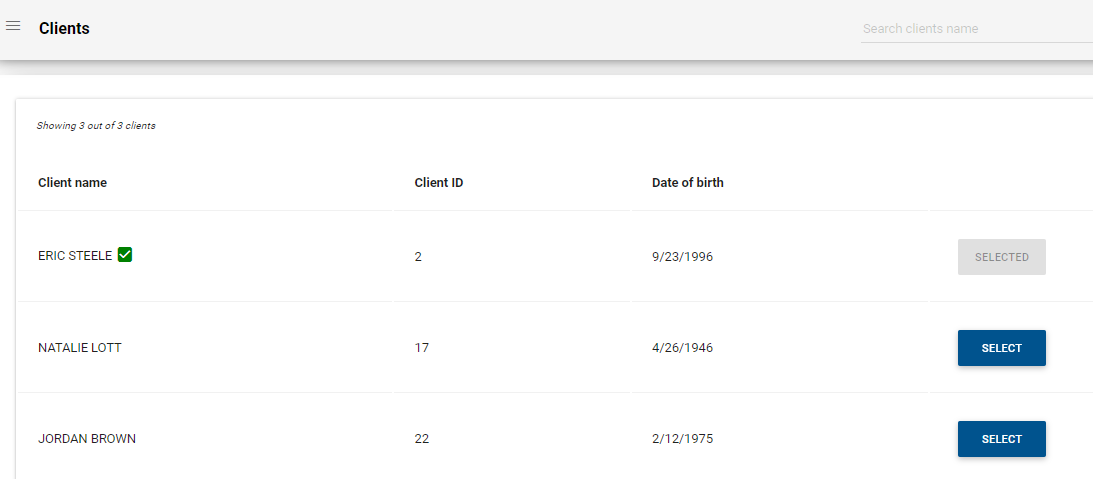
Click Select on the client record you want to view.
The trips of the selected client are shown on the screen.
-
Perform any of the following steps to view the information you want:
- To view the trips on the current date, click the calendar button (shows
the current date):

- To view trips on other dates, click the appropriate arrow on the date field on the top bar of the screen.
- To view the trips on the calendar, click the calendar button on the top
right corner of the screen:
- To view the details of a trip while on the list or calendar view, click anywhere on the trip record.
- To view the trips on the current date, click the calendar button (shows
the current date):
- If viewing another screen and you want to view the client's trips, click My Rides on the navigation pane.