Using Drill Options
Using drill options allows you to view data related to visuals from a layered perspective.

To view any drill up or drill down data options for visuals that contain a
hierarchy, do one of the following:
- Right-click on the visual and select the appropriate drill option.
(Depending on where you are in the drillthrough, you may see different
options.)
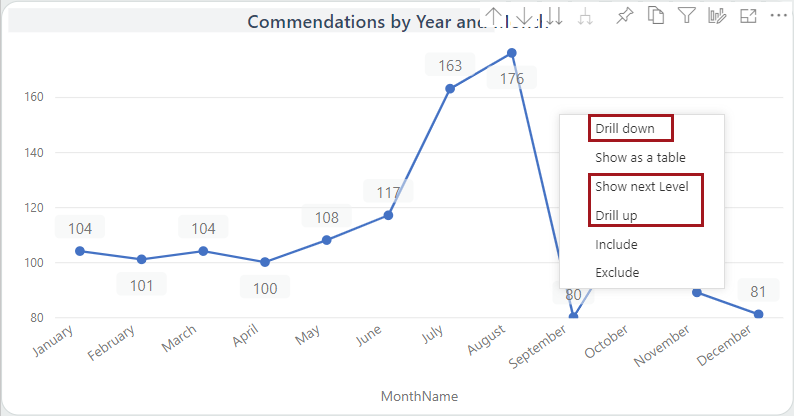
- Use the arrows shown in the action items area.
| To.. | Select this.. |
|---|---|
| Drill up one level |  |
| Drill down one level |  Then select a data point. Select the arrow again to turn off drill down. |
| Expand all fields at once to add the next hierarchy to the current view |  |
| Drill down all fields at once |  |
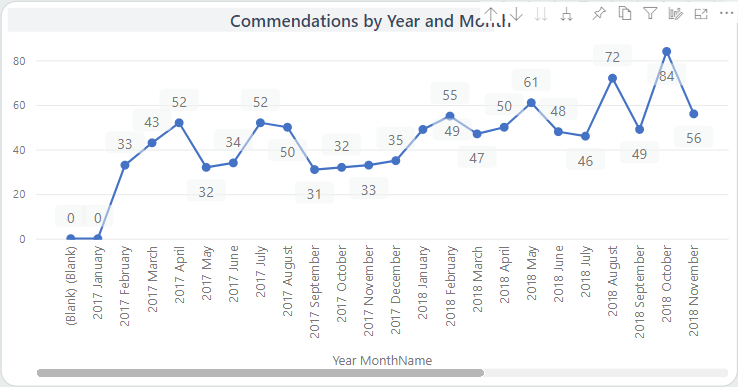
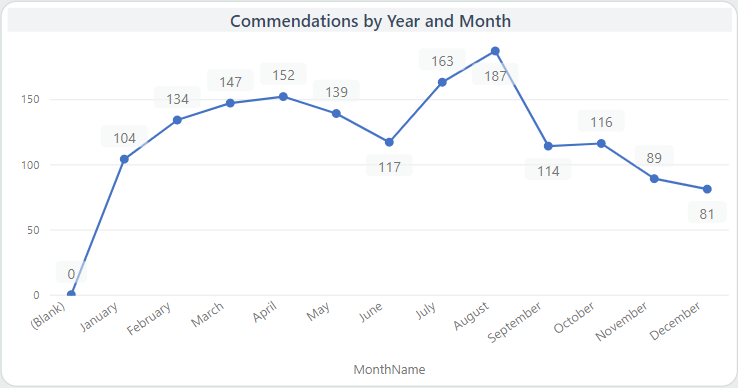
The
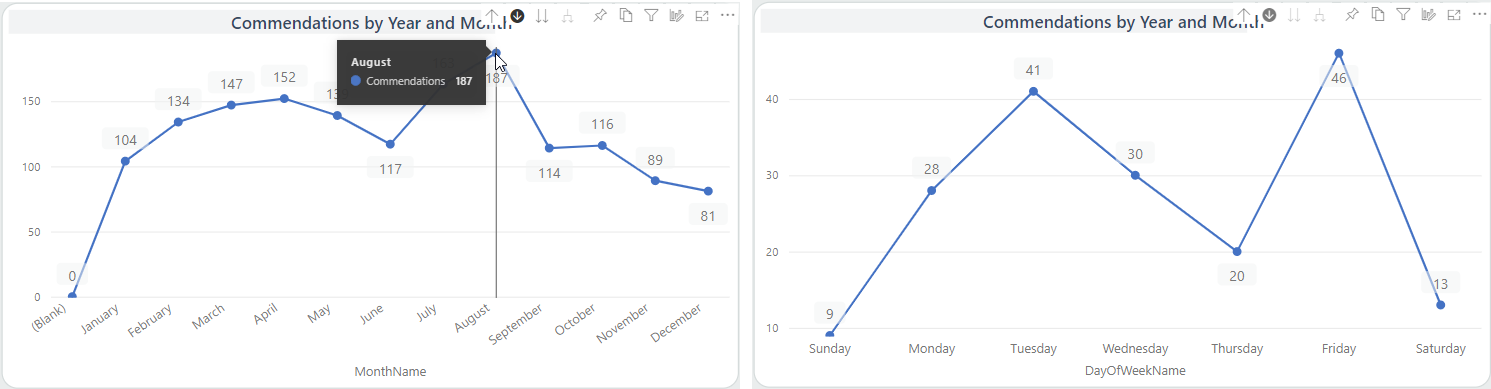
Commendations by Year and Month visual shows data based on month (MonthName).
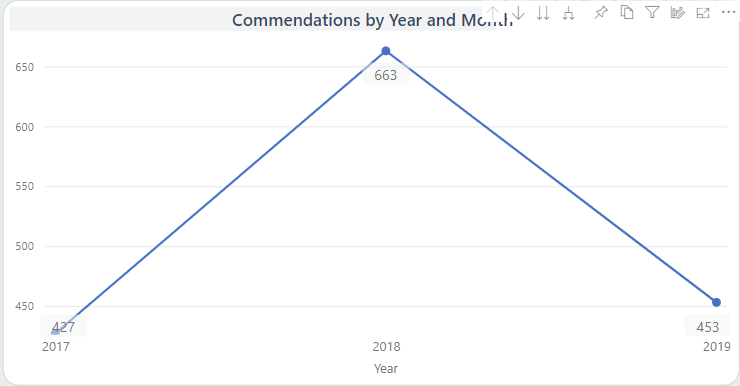
Drilling up shows data based on year.
Turning on drill down and selecting a data point shows details (based
on DayOfWeekName) for that data point (August).
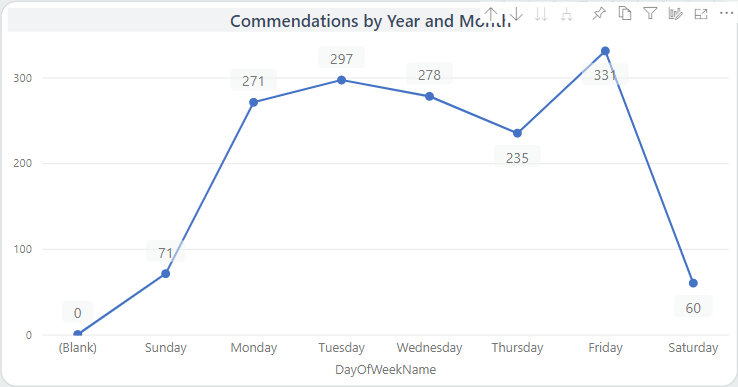
Selecting Go to the next level in the
hierarchy shows DayOfWeekName information based on the selection of
all data points in the original visual.
To use Expand all down one level in the
hierarchy, we start on the Year page (highest level) shown in the
drill up example. Expanding all shows the Year MonthName options for all three
years. To see more data, we can use the scroll bar.