
Editing Booking Activities from Schedule Editor
To edit passenger type, space type, or fare information for a booking, use the Edit Booking Activity command instead of opening up the booking in Trip Booking.
Before you begin
Procedure
- Locate and highlight a client booking.
-
Do one of the following:
- Click .
- Right-click and click Edit Booking Activity.
The Edit Booking Activity dialog box appears.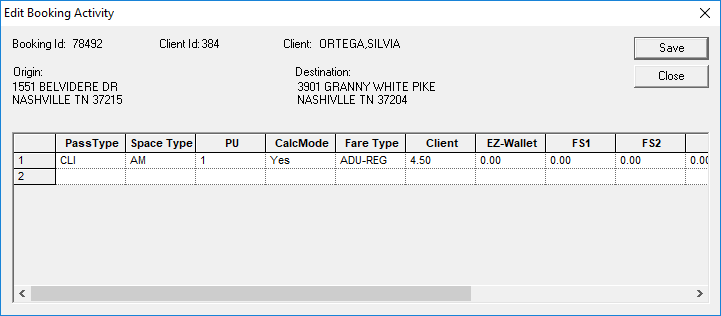
-
Change information as needed.
A passenger type, space type, or fare type change can be recorded and shown in the Comment column in the Tracker Action Browser dialog box.If the passenger's Fare Type is currently marked as Inactive in Fare Types ancillary data, it is marked with an asterisk in the Edit Booking Activity dialog box.Note: A default passenger type (PassType) (as defined in , on the Profile tab, under ) must be included in the booking activity.
-
Click Save.
A confirmation message appears.
- Click Yes.