Live schedules can be copied for training purposes or to test the system.
Before you begin
Schedule Administrator must be open. Schedule types must be
created and schedules must be added for those schedule types.
About this task
Working on a copy of live schedules gives you the benefit of using the system with real
data without affecting a real schedule. Based on the outcome of your tests, you can adjust the
settings in the system to yield the best results for service at your site.
Procedure
-
Click
The
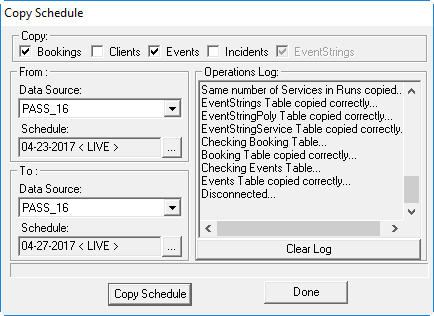
Copy Schedule dialog box appears.
-
In the Copy frame, select the check boxes for the event types you
want to copy.
-
In the From frame, do the following:
-
Click the Data Source of the schedule you want to
copy.
-
In the Schedule field, click the ellipsis button (…).
The Please Select a Schedule dialog box
appears.
-
In the Schedule Type list, click a schedule type. For
example, Live.
-
In the Schedule list, click a schedule.
-
Click OK.
-
In the To frame, provide the following information:
-
In the Data Source list, click the data source to which your schedule will be copied.
-
In the Schedule field, click the ellipsis button (…).
The Please Select a Schedule dialog box
appears.
-
In the Schedule Type list, click a schedule type. For
example, Training.
-
In the Schedule list, click a schedule.
You must have existing training schedules to complete this task. If you have no
schedules in this list, add a training schedule and then copying the schedule.
You cannot select the schedule selected in the From
frame.
-
Click OK.
-
At the bottom of the Copy Schedule dialog box, click Copy Schedule.
-
When the copying process has completed, click Done.
The Schedule Copy dialog box closes.
-
Click .
The screen is refreshed and you can begin working with the copied
schedule.
What to do next
Locate and select the copied schedule (schedules are listed in
chronological order, beginning with loaded/unloaded Live schedules and ending with Template
schedules). If the schedule is not loaded, click . When the schedule has loaded, you can perform scheduling activities on
it.
