
Assigning a Pull-Out in Schedule Editor
Pull-outs typically occur when a vehicle leaves a garage.
Before you begin
About this task
- The driver’s name
- The vehicle number
- The odometer reading at the time of pull-out
- The time of the pull-out
You can correct any of the four elements by filling in the Pull Out Assign dialog box.
Procedure
- Click the Display Runs button:

Runs view appears. -
Do one of the following:
- Click .
- Press CTRL + P.
The Pull Out Assign dialog box appears.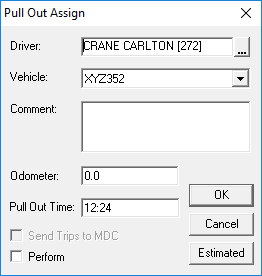
-
In the Driver field, type the full or partial last name of the
driver.
If there is a list of results, locate the driver you want and double-click the driver’s name. (Alternatively, type a forward slash (/) followed by the ID number of the employee you want.)
- Click a Vehicle number.
-
Type a Comment.
You can type a comment with a limit of 254 characters. This comment appears in the title bar of the Run Itinerary view.
- Type the Odometer reading.
-
Type the Pull Out Time for the run.
This is the time at which the pull-out occurred.
- Optional:
Select the Send Trips to MDC check box to send all trip messages
belonging to this run to the vehicle involved in the pull-out.
This command is only available to certain organizations.
- Optional: Select the Perform check box to mark the pull out as having been performed.
-
Click OK.
The data is saved and the dialog box closes.