
Viewing Runs for a Selected Schedule
After you select a schedule is in Schedule Editor, many tasks require that you select a run so that you can see the run itinerary or a client’s itinerary.
Before you begin
Procedure
- Click a Live or Template schedule in the grid.
-
Do one of the following:
- Click .
- Click the Display Runs button:

Results
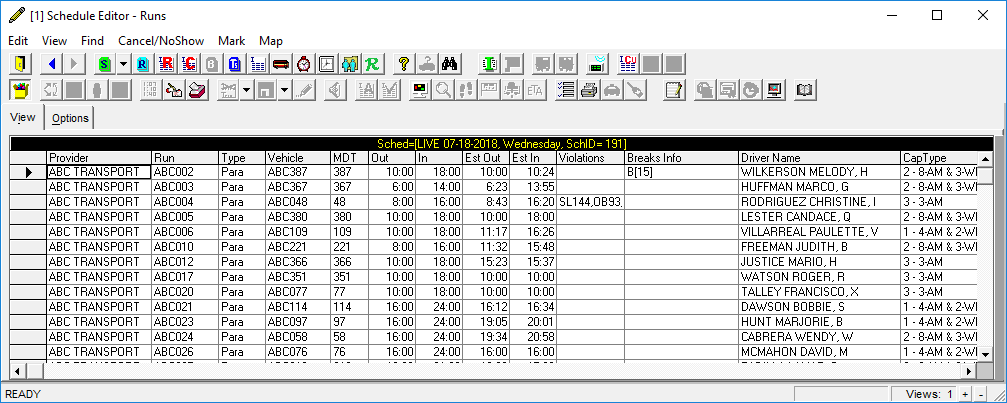
This grid shows basic information concerning all runs:
- The times in the Est Out and Est In
columns reflect the first and last event assigned to a run.
For example, if there is nothing scheduled to the run, the times shown in these columns are the same as the Out time. They will vary as events are added to the run.
- The Violations column shows all violations incurred on a run as well as, in some cases, the number of minutes the run has gone beyond the allowable threshold.
- The Breaks Info column shows breaks assigned to runs as well as indicate the duration of the break. For example, B[15].
- The CapType column shows the capacity type and capacity type
description for the vehicle.
These are defined in Capacity Types ancillary data by a system administrator (and further defined on the Capacities tab in ).