
Defining Update Client Statistic Jobs
An Update Client Statistics job allows statistics on the Statistics tab in Client Registration to be automatically calculated and available on-the-fly, instead of having to wait for the statistics to be calculated when viewing the tab.
Before you begin
About this task
Procedure
- Select a job from the grid.The scheduled job record settings are shown in the Job Schedule frame.
- Confirm the Agent Name PassScheduleAgent is defined for the job schedule.The selected agent determines the options that are available in the Job Type field.
- Click Job Data.The Job Data dialog box appears.
- Define the schedule type and date information:
- In the Job Type field, select Update Client Statistic. If no Job Types are available, confirm that an Agent Name has been selected in the Job Schedule frame of the Schedule Job Agent dialog box.
-
Click New.
The New Batch dialog box appears.
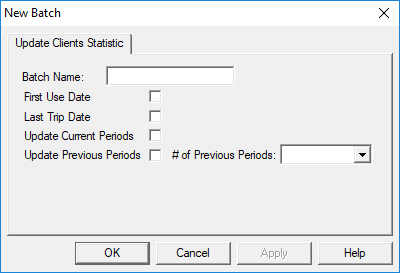
- Type the Batch Name for the job step.
-
Select First Use Date to update the date of the client's first
trip booked with the site.
This check box can be unselected after the job is first run.
- Select Last Trip Date to update the date of the client's latest trip booked with the site.
-
Select Update Current Periods to update the current client
statistics period.
Periods are defined in Client Statistics ancillary data by a system administrator.
-
Select Update Previous Periods and click the # of
Previous Periods to update previous statistics periods.
One, two, or three previous periods can be calculated. Periods are ordered by their ToDate.
- Click OK.
-
Click OK.
The Job Data dialog box closes.
- Click Save.