
Defining Batch Scheduling Jobs
You can create jobs to batch schedule defined types of trips at specific times.
Before you begin
Procedure
- Select a job from the grid.The scheduled job record settings are shown in the Job Schedule frame.
- Confirm the Agent Name PassScheduleAgent is defined for the job schedule.The selected agent determines the options that are available in the Job Type field.
- Click Job Data.The Job Data dialog box appears.
- Define the schedule type and date information:
- In the Job Type field, select Batch. If no Job Types are available, confirm that an Agent Name has been selected in the Job Schedule frame of the Schedule Job Agent dialog box.
-
Click New.
The New Batch dialog box appears.
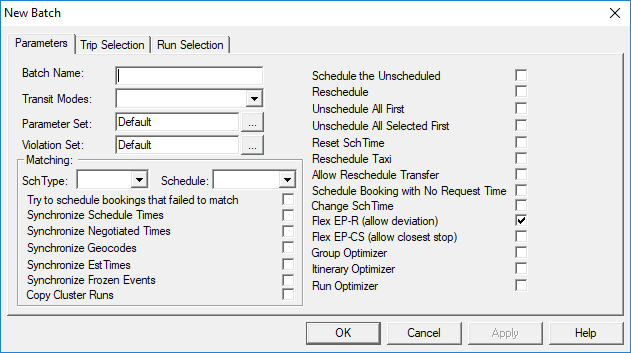
- On the Parameters tab, type a Batch Name for the batch job step.
-
In the Transit Modes list, click the appropriate transit modes
(Para, Flex, Fixed, and/or Taxi).
Runs for the selected transit modes are included in the batch schedule. If no selection is made, all transit modes except for Taxi are included.
-
Beside the Parameter Set field, click the ellipsis button (…) to
select the parameter set to be used for the batch scheduling. The Solution
Parameters dialog box appears.
- (Optional) Select the Itin. Sol'ns Use Common Run check box to search only for solutions that include the same run for all bookings in the itinerary.
- In the Set list, click a parameter set. Parameter sets are defined in system properties.
- Click OK.
-
Beside the Violation Set field, click the ellipsis button (…) to
select the violation set.
The Allowable Violations dialog box appears.
-
In the Viol Set list, click a violation set.
Violation sets are defined in system properties.
- Click OK.
- Select parameter options as required.
- Optional:
To batch schedule by matching to a live or template schedule, do the following:
- In the SchType list, click Live or Template.
- In the Schedule list, click the date or week day.
- Select the match options you want.
- Optional: Click the Trip Selection tab to select specific types of trips.
- Optional: Click the Run Selection tab to select specific types of runs.
- Click OK.