
Creating Job Schedules
Batch jobs can be created for different purposes.
About this task
Procedure
-
Click .
The Schedule Job Agent dialog box appears.
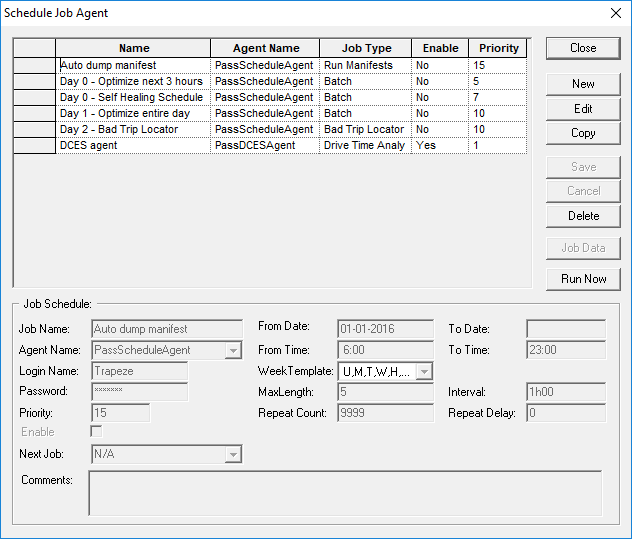
- Click New.
- In the Job Schedule frame, fill in the fields as necessary.
- Click Job Data and set the job data parameters.
-
Click Save.
The job is saved and is visible in the top section of the dialog box.
- Optional:
To run the job immediately, click Run Now.
Run Now is useful for testing purposes.