
Creating New Employee Records
Before you create any employee profile you must create address types for the employees.
Before you begin
Procedure
-
Click the Add New button.
The General tab appears.
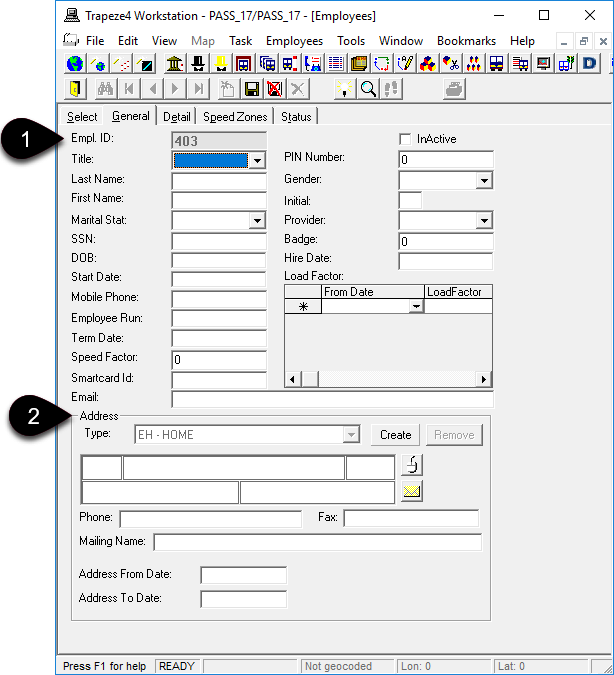
- 1
- The system generates and ID for each employee.
- 2
- Depending on your system set up, address fields may appear on the Detail tab rather than on the General tab.
-
Provide the following basic information:
Information found in drop-down lists is typically created in ancillary data by a system administrator.
- Click the employee's Title.
- Required: Type the employee's Last Name.
- Required: Type the employee's First Name.
- Type the employee's middle Initial.
- Click the employee’s Marital Status in the list.
- Click the employee's Provider if associated or employed by one.
- Type the employee’s social security number (SSN) or social insurance number (SIN).
- Type the employee's Badge number.
- Type the employee's DOB (date of birth).
- Type the employee's Hire Date.
- Type the employee's Start Date.
- Type the employee's Mobile Phone number.
- In the Term Date field, type the termination date for the employee (if they no longer work for the agency).
- Type the employee’s Smart Card ID number.
- Type the employee's Email address.
-
Add the employee's Address information:
Depending on your system setup, Address fields may appear on the Detail tab instead of on the General tab.When you click the Create button, it is replaced by the Remove button. Click Remove only if you want to delete the current address.
-
Geocode the address using the Match Address button:

-
Geocode the address using the Match Address button:
-
If the employee is a driver, provide the following information:
- Click the Save button:
