
Using the Find Employees Dialog Box
The Find Employees dialog box is a search tool that allows you to find a specific employee.
Before you begin
Procedure
- On the Select tab, select the Search Result option.
-
Click Display.
The Find Employees dialog box appears.
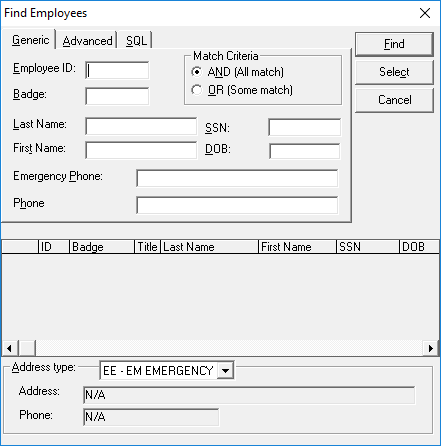
- Fill in one or more of the following fields with employee information:
- Employee Id
- Identification number.
- Badge
- Badge number.
- Last Name
- Full name or a partial surname followed by an asterisk (*).
- First Name
- Full name or a partial given name followed by an asterisk (*).
- SSN
- Social security number or social insurance number.
- DOB
- Date of birth.
Use the format entered in the employee record. For example, dd-mm-yy.
- Emergency Phone
- Emergency contact phone number.
This is the phone number in the Emergency Phone field on the Detail tab in .
- Phone
- Type the employee’s phone number, and then choose the associated address type.
For example, if you type the employee’s home phone number, click the Address Type field and choose EH - Employee Home. The system searches for phone numbers affiliated with the selected address type to find a match. Ensure that the format of the entry (for example, punctuation and spaces) matches the phone number entered in the employee record exactly.
- In the Match Criteria frame do one of the following:
To Do this Find an employee who matches all defined criteria Click AND (All match). Find an employee who matches some defined criteria Click OR Some Match. -
Click Find.
The grid in the lower section of the dialog box shows all matches generated by the system.
- Highlight the appropriate employee and click Select.