
Using Build Weeks
The Build Weeks step allows you to see and edit selected runs in a worksheet grid.
Procedure
-
After completing the tasks in the Match Runs step, do one of the
following:
- Click Next.
- Click the Build Weeks step button:

The Build Weeks step appears.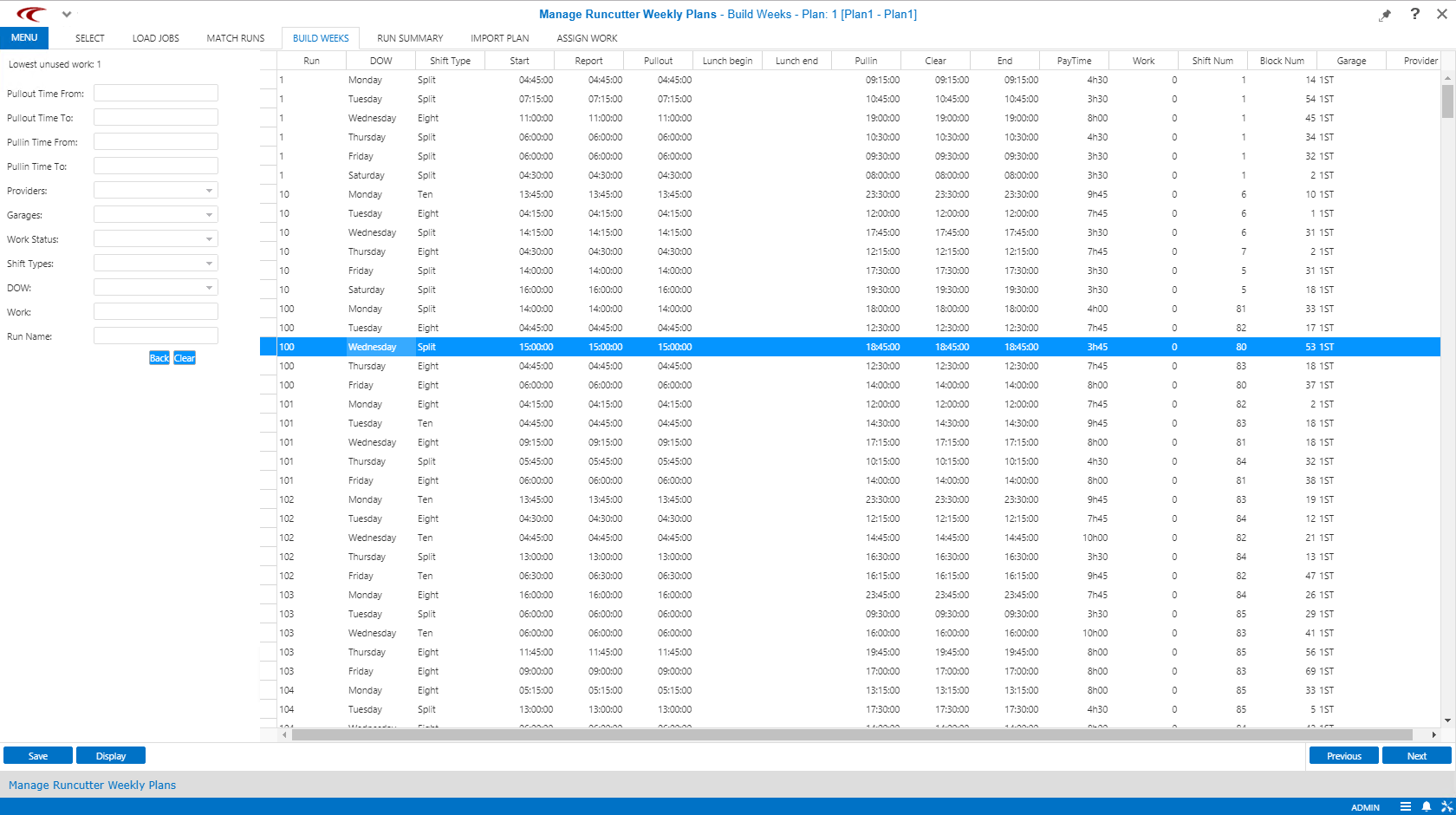
- Fill in or select the appropriate option in the fields on the left pane.
-
Click Display.
Each time a filter set is entered and Display is clicked, the filter set is remembered.
- Optional: Click Back to return to any of the previous five filter sets saved in memory.
- Optional:
Click Clear to clear the filters that are currently shown.
This does not clear the filter sets in memory.
-
Click Save.
The grid shows the results of the search based on the selected filters.
Typically, the results are shown by run and then by day of week.
- Optional:
Sort on any column:
- Click a column header once to sort the data in ascending order based on that column.
- Click a second time to sort in descending order.
- Click a third time to return to the natural run/DOW order.
- Optional: To add a record, right-click on the grid and click Add a new record. Then, fill in the values as appropriate.
- Optional:
To edit multiple records, do the following:
- Press CTRL and click the rows to be updated.
- Right-click one of the selected rows and click Edit Record(s).
- Define the Run, Pullout, Pullin, Shift Type, Provider, and Garage values for the selected runs.
- Click OK.
- Optional: To delete records, select one or more records to delete and press the Delete key on the keyboard.