
About Viewing Report Designer
When viewing and creating reports in Report Designer, there are multiple steps in the Navigation bar that are used to customize the various parts of a report.
These include the fields to report on, the definition and validation of report parameters, the layout of report prompts, and the report output.
To open Report Designer, click .
-
Select
-
Edit
- Test
- Running
The Select Step
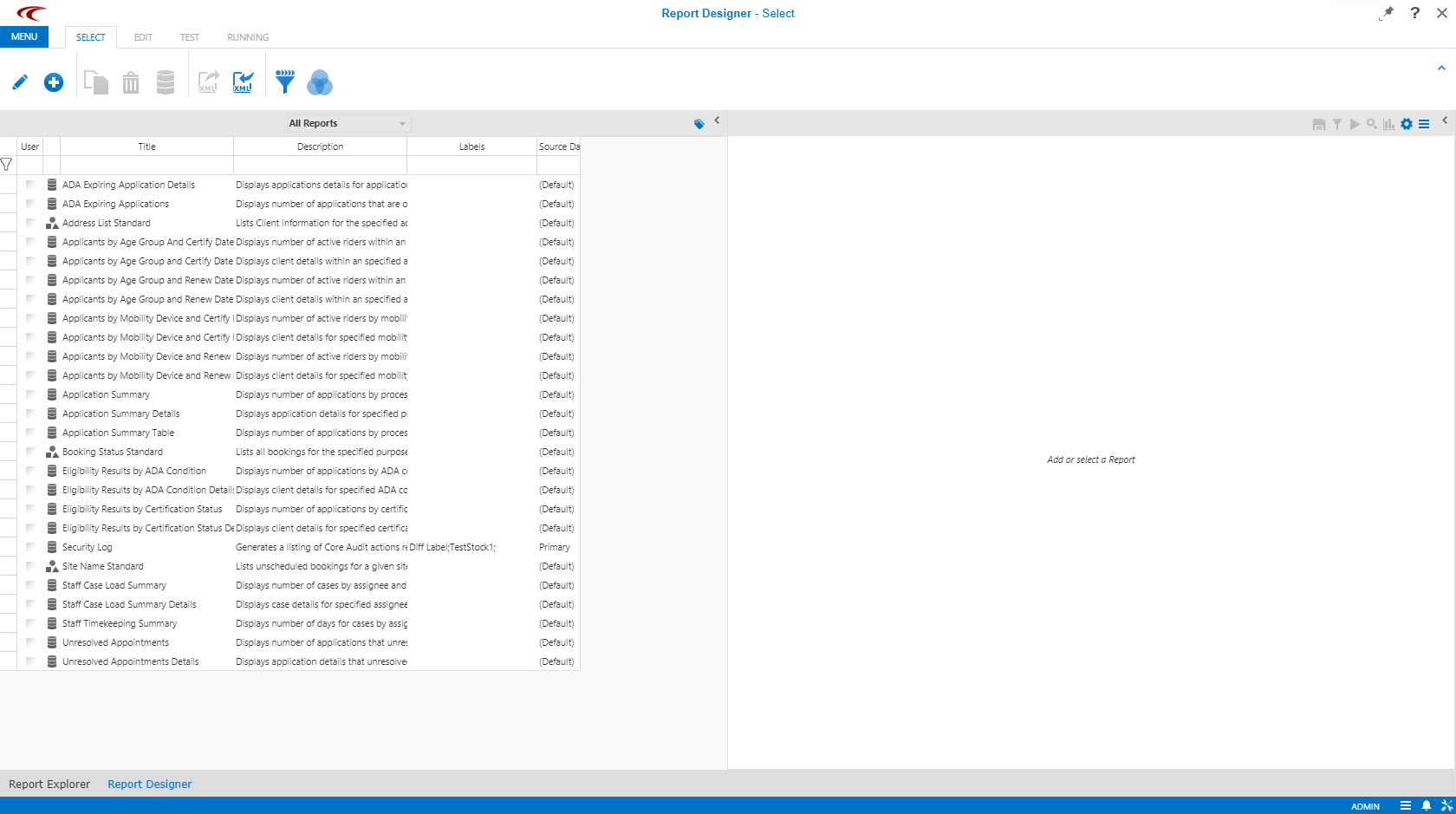
When Report Designer is first opened, the Select step is selected and all reports currently in the system, both system and user-defined, are shown. In the Select step, users can create, edit, copy, or delete user-defined reports.
Reports can be sorted alphabetically by clicking the column header or filtered as needed to find a specific report in the list by typing or selecting for the search criteria in the filter row. Only user-defined reports can be edited and are identified by a green check mark in the report's User column.
The Edit Step
Report criteria are defined in the Edit step. If needed, the report name, description, and labels can be modifiedin the Details pane.
- Details
- Shows the available source database and output formats.
- Query
- You can modify the query associated with the report.
Relational operators can be applied to each expression to further define the information to be reported on. If multiple fields are selected, Boolean operators (AND, OR) can be defined to distinguish a relationship between expressions.
You can preview the SQL query by clicking the Generate Preview button.
- Edit Parameters
- Allows for specific search criteria to be defined for fields that have conditions
applied to them.
It is also an unformatted preview of the selected fields and their contents that are shown on the Output step.
- Results
- As fields are selected and parameters are defined, a preview of the report is shown
in the Results pane.
Note that only the top 100 rows are shown. This preview can be displayed by clicking the Generate Preview button in the Edit tool bar. If a preview takes too long to generate, click the Stop generating the preview button.
If desired, field names can be toggled to switch between database field names and user-friendly field names using the Toggle Edit Parameters View button.
Optionally, after the report parameters have been defined, the parameter layout and report output can be customized in their respective steps before the report is generated.
The Processing Step
The Processing step is available when creating Crystal Reports and Trapeze Query reports to specify and validate values for report parameters, and to prepare temporary data to be used for the report.
The Output Step
If desired, the format and layout of the report parameter prompts when executing the query can be customized, including the fields' positions, color of their labels, and the background of the form.
The Test Step
Before generating a report in Report Designer, confirm that the form screen appears as desired and that all fields work correctly.
The report can then be generated and exported in HTML, CSV, Excel, or PDF format.