
Running User-Defined Reports
The Running step is used to verify the available fields and their appearance and to confirm that the report output shows the requested information.
Before you begin
Procedure
- In the Select screen, select the report in the list to run.
-
Click the Running step button:

The Running step appears.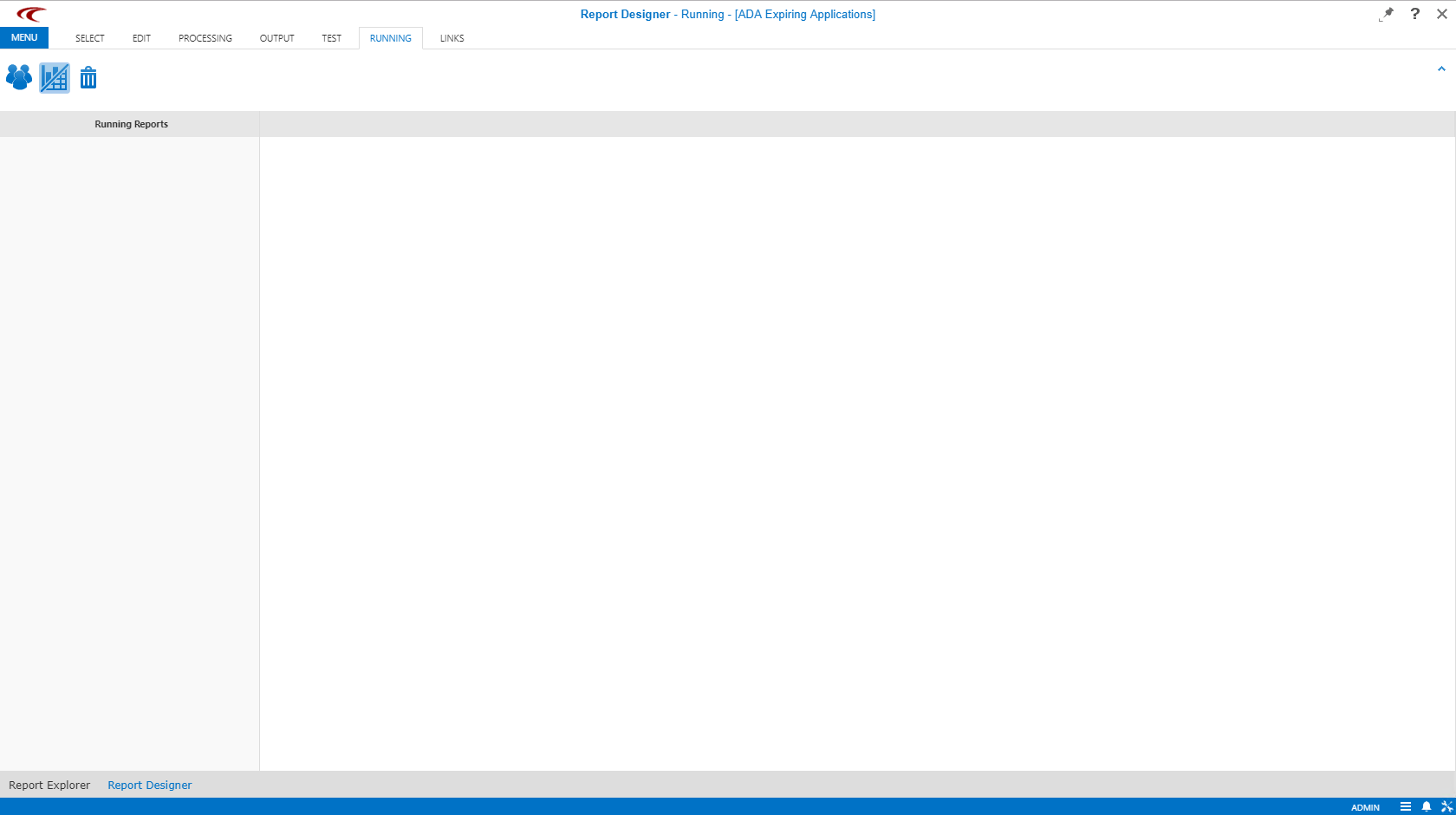
The Running Reports pane shows the list of user-defined reports. The right pane shows the parameters of the selected report.
-
Select the report to run.
Edit the parameters as needed. For example, set the date range to be covered by the report.
-
Click the appropriate option:
- Show all users
- Show KPIs
-
In the Report field, select the format in which the report
should be generated and click Report.
The length of time needed to run a report depends on the specified parameters.