
Configuring Parameters for SQL Query Reports
When running a report, you may need to configure parameters after you have extracted them, that is, upload the report, extract parameters, and then configure the parameters as required.
-
Click Report Designer on the Reports
list.
The Report Designer screen appears.
-
On the Parameters pane, right-click. From the shortcut menu,
select New.
The Parameter Name dialog box appears.
-
Enter a name for the new parameter,SQL Parameter and click
OK.
The new parameter appears in the Parameters pane.
-
Select the new parameter.
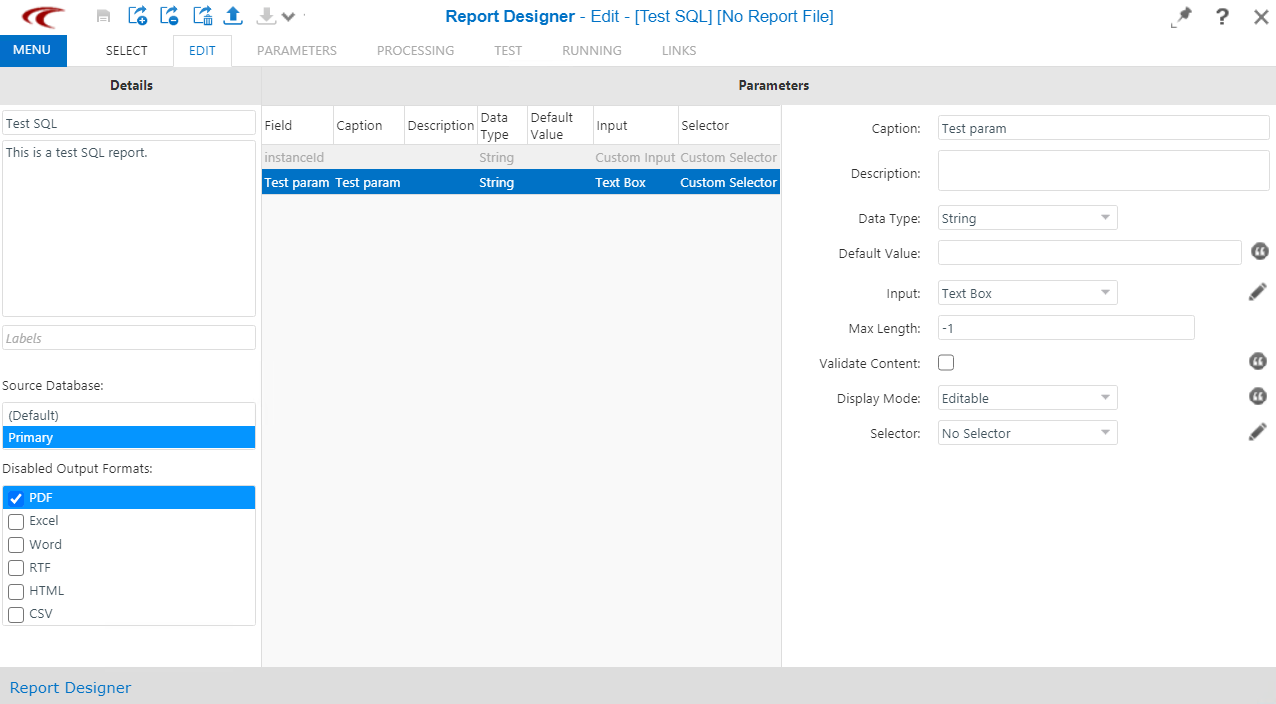
The right frame of the Parameters pane shows fields for defining the new parameter.
-
Fill in the following fields:
- Caption - Name of the parameter.
- Description - Description of the report.
- Data Type - Data storage format that contain specific type or range of values, for example, string, characters, numbers.
- Default Value - Value to be set as the default for the parameter, if applicable.
- Input - Input format, for example, Text Box.
- Max Length -
- Validate Content -
- Display Mode - Choose from the following options: Editable, Read Only, Disabled
- Selector - Examples: No Selector, Driver License Validation Mask, Phone Number Validation Mask
- In the Inputdrop-down list, click the type of input that you want for the new parameter. For example, if you want the results to appear as a bar graph, click Bar Graph. The fields that appear below the Input field relate to the creation of the bar graph. For some options, no additional fields are shown.
- Optional: Complete the other fields that appear when you enter or select data in some fields, for example, select Date for Data Type, List Box for Input.
- Click Save.