
Creating SQL Query Reports
You can create the SQL query reports using the Report Designer screen.
-
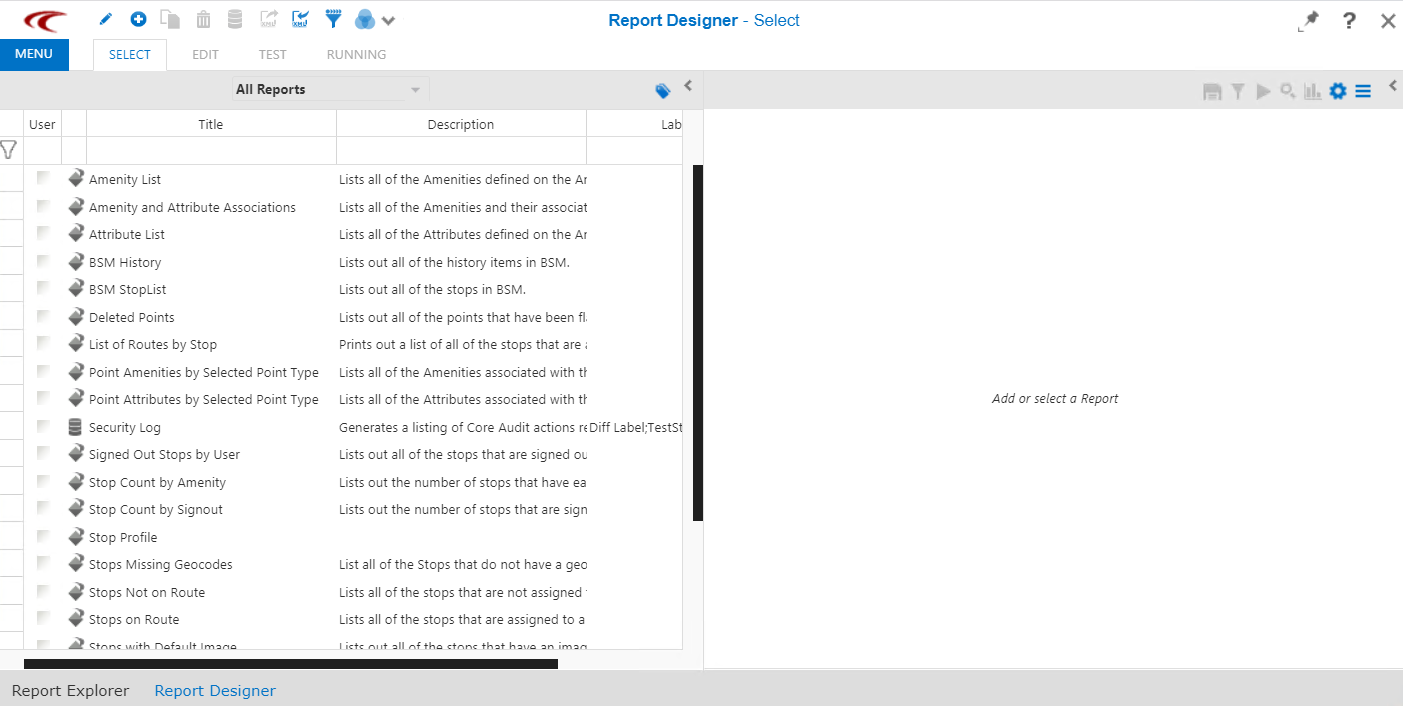
Click Report Designer on the Reports
list.
The Report Designer screen appears.
-
On the screen toolbar, click the New button:
 .
The New Report dialog box appears. The following graphic shows Crystal Reports selected:
.
The New Report dialog box appears. The following graphic shows Crystal Reports selected: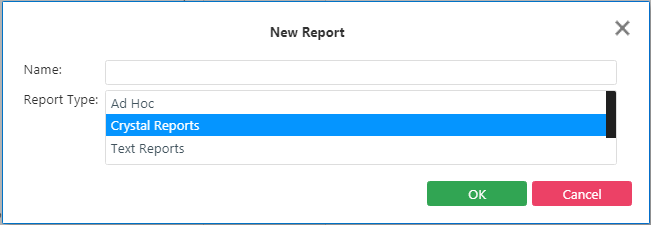
- In the Name field, enter an appropriate name for the report.
- In the Report Type list, select the report type you want to run: Ad Hoc, Crystal Reports, Text Reports, Report Group and Trapeze Query.
-
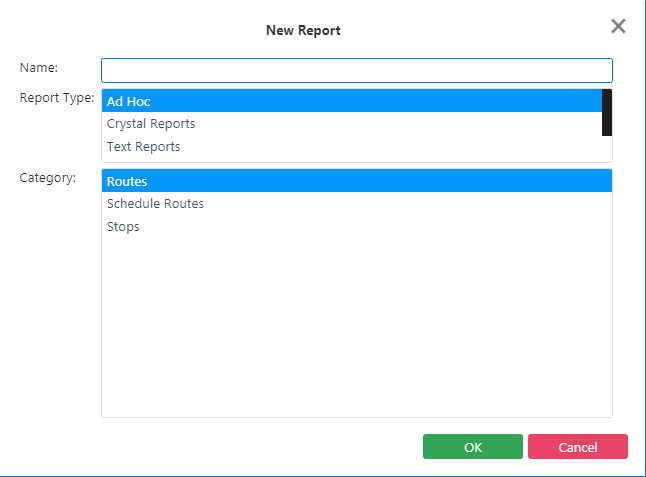
(If Ad Hoc is selected) In the Category
field, select from the following options: Routes,
Schedule Routes, and Stops.
-
Click OK.
The Edit screen appears.
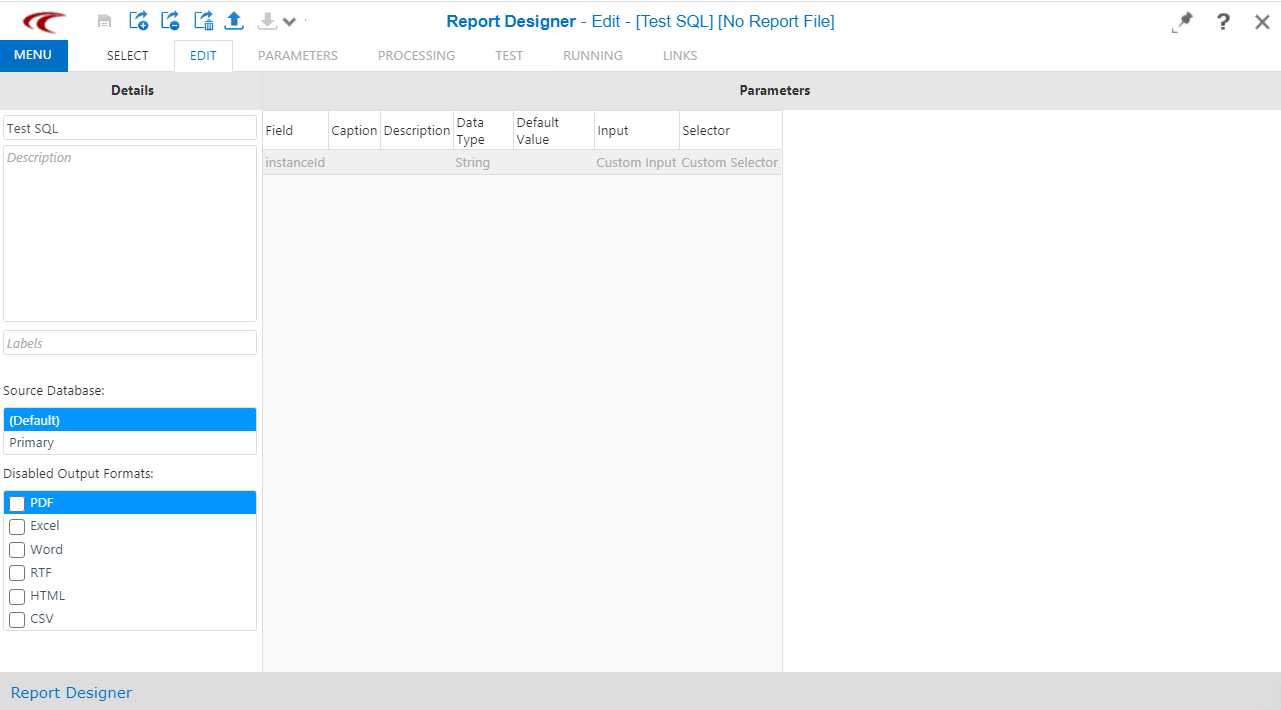
- In the Details pane, enter a brief description of the query.
- In the Query pane, enter the appropriate query to generate the report that you want.
-
Click the Save button:
 .
.