
Setting the Context in BlockBuster
Before you can work with any data (uncut blocks or previous runcuts) that exist in BlockBuster, you must set the context of the data that you want to work with using the Context dialog.
-
On the main menu, click .
Alternatively, on the screen toolbar, click the BlockBuster button:
 The BlockBuster screen appears. The data set that was last accessed using the current user login is displayed.
 -
Press F3 or click the Context
button:
 The Context dialog is displayed. The data of the current context is shown.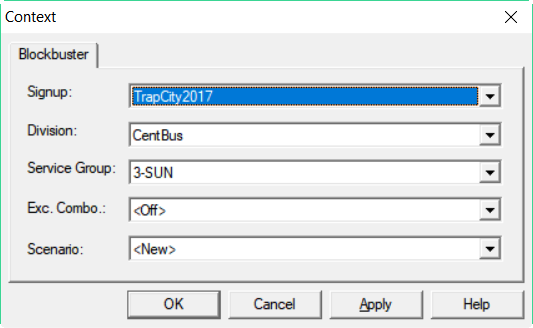
-
From the Signup list, choose the sign-up period with which you
want to work.
If in a network environment, a warning message is displayed if you select a context that another user is currently using.
- From the Division list, choose the correct division for the data you want to access.
-
From the Service Group list, choose the appropriate service
group, (for example, M-F, Sat, Sun).
If exceptions are used with the service group you selected, a list appears in the Exc.Combo field.
-
From the Exc. Combo list, select the
appropriate exception. If exceptions are not used, the option,
<OFF> appears in the Exc.Combo field.
-
In the Scenario field, perform one of the following steps:
- To build upon the parameters and runcuts contained in a saved scenario, choose a saved scenario from the Scenario list
- To create a new scenario that is not based on any previously saved work, choose <New> from the list. If the selected scenario is the active scenario, “<Active>” is shown beside the scenario name.
Blocks appear in the right grid. (The parameters have not been defined at this point.) -
Click OK.
When selecting a saved scenario in step 7, you are not able to alter the saved file. Instead, BlockBuster gives you access to an exact replica of the saved scenario. As you work with the replica, you can choose to save any alterations you make by saving the scenario with another unique name.