
Setting the Context in the Graphical Runcutting Screen
Setting the context allows you to work on the blocks from the selected sign-up period.
-
With the Graphical Runcutting screen open, press F3 or click
.
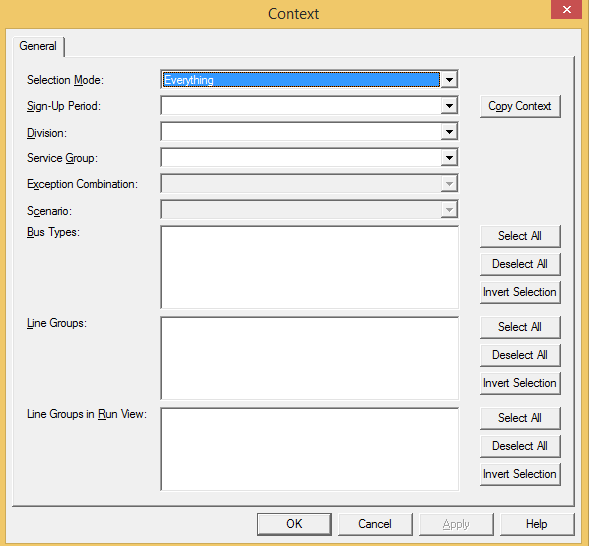
The Context dialog appears.
-
From the Selection Mode list, select the mode you want:
- Everything: Displays all the relevant data from the selected sign-up period.
- Blocks must exist: Displays blocks data that can be cut, if any, from the selected sign-up period.
- Scenarios must exist: Displays data that have been saved in scenarios in the selected sign-up period.
- From the Sign-Up period list, select the sign-up period you want.
- To copy the existing context set up for BlockBuster, click Copy Context.
- From the Division list, select the division whose data you want.
- From the Service Group list, select the service group you want.
- From the Exception Combination list, select the exception combination you want.
- From the Scenario list, select the scenario whose data you want. Alternatively, create a new scenario. Select <New>.
-
From the Bus Types list, select the vehicle types that are to be
used in the runs.
(The menu contains the vehicle type ancillary data that has been created for your agency.) If you do not have rules for vehicle types, Undefined appears by default.
- (If runcutting by line group) In the Line Groups field, select the line groups you want to include. The selected line groups are also shown in the Line Groups in Run View frame. Unless you deselect a line group in the Line Groups in Run View frame, the selected line groups are shown in the Runs View pane.
- Click Apply.
- Click OK.