
Automatic Runcutting
When you select Automatic runcutting, the scheduling algorithms in BlockBuster use the scheduling constraints you have defined in the parameters.
Automatic runcutting is performed through the Cut dialog, which provides you levels of depth and effort for each runcut.
-
Click or click the Cut button:
 The Cut dialog appears.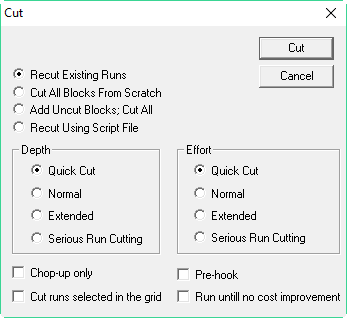
-
Choose the type of runcut you want the system to perform based on your requirements.
- Recut Existing Runs- Select to build on an existing runcut. This is selected by default.
- Cut All Block from Scratch - Select if the blocks have not been previously cut.
- Add Uncut Blocks, Cut All - Select to create runs from the Uncut Pieces and add them to the runs in the Cut Pieces grid or to recut a run
- In the Depth and Effort frames, select the appropriate level of depth and effort, respectively.
- (If applicable) Select other filters:
- Chop-up only – The system first cuts the one-piece runs and uncuts pieces into reasonably-sized one-piece runs according to your selected parameters. The system then attempts to create legal runs from these segments and the remaining pieces.
- Pre-hook – Creates the cheapest runcutting solutions by putting the one-piece runs created in the initial chop-up into two-piece runs. Make sure to select the Chop-up Only checkbox also when using this feature.
- Cut Only the Runs Selected in the Grid – Cuts only the runs you selected on the grid. This is used in conjunction with the Add Uncut Blocks, Uncut All runcutting option.
- Run until no cost improvement – The system now checks the total cost of the runcut until no more improvements can be made. (This option is activated in Block Optimizer only when you have existing runs.)
- Recut Using Script File - If selected, you can develop and execute an xml script for recutting runs. The script includes a list of steps to run selected Depth and Effort options that would be executed in sequence and reiterated to improve the cut within a defined run time. After each step, the log records the completed step number, the number of iterations completed since the beginning of the recut, and the total costing value. To run the script, click the option, and then click Cut. A dialog opens where you can navigate to the xml file. See Sample XML Script for an example.
-
Click Cut.
The Runcutter screen appears. A progress bar at the bottom of the screen shows you the status of the runcut.
If the Recut Using Script File option was selected, the screen also includes information on the step and iteration currently in progress. The runs that have been cut then appear in the Cut Pieces grid.