Updating Employee Expiration Dates in the Client Shell
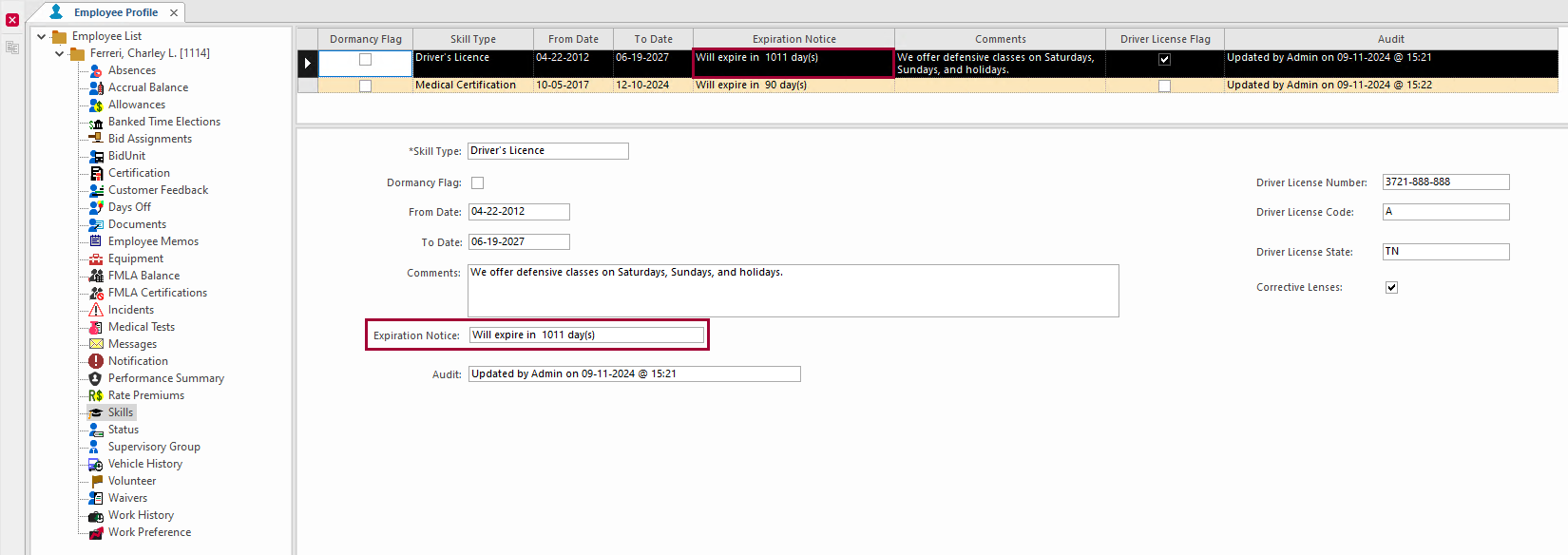
Client Shell users can update expiration dates in the Employee Profile - Skills screen.
- In the Client Shell, open the Employee Profile screen and set the Context (F3).
- Select an employee.
-
If driver's license information needs to be updated, update the following
fields:
Driver's license information is shown on the Employee Profile - Skills screen.If the Driver License Flag is selected for the skill type in the OPS Skill Types screen, then most driver's license information is updated in the employee card.
- Corrective Lenses
- Driver License Code
- Driver License Number
- Driver License State
- Driver License Expiration Date
The driver's license expiration date can be updated using this field or on the Employee Profile - Skills screen using the To Date field.
Select Save:

- In the employee submenu, select Skills.
-
In the list view, select an employee skill record.
To create a new record, right-click in detail view and select Add New Record.
- Optional:
If the skill is now dormant, select Dormancy Flag.
The skill becomes inactive until the Dormancy Flag is cleared. This option can only be selected for skills where an applicable dormancy type is defined in OPS Skill Types ancillary data.If the skill type is dormant, the checkbox becomes read-only. If you change it and try to save the change, a message appears stating that the change can't be updated.
-
Update the skill From Date and To
Date.
Outside of these dates the skill is invalid and treated as a missing skill.
- Optional: Enter Comments.
- Select Save.