
Activating Master Runs Using the Run Activation Wizard
Once you have made changes to a master run, use the Run Activation Wizard to delete existing template or live runs and activate new runs with the changes in effect.
Before you begin
About this task
Procedure
- Search for the runs to be activated.
- In the Runs grid, select the runs to be activated.
-
Click the Run Activation Wizard button:

The Run Activation Wizard dialog box appears.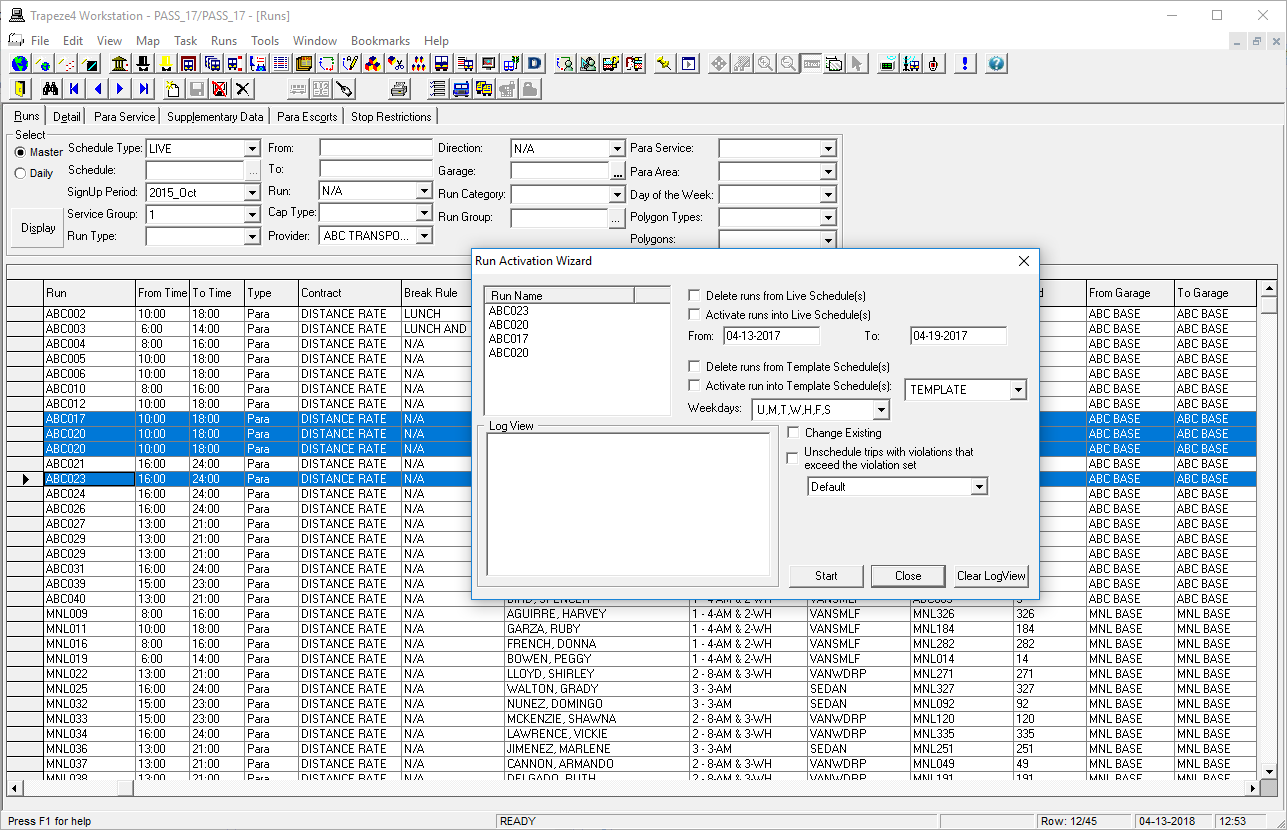
-
Select one or both of the following options:
-
- Activate runs into Live Schedule(s)
- Select this option, and then in the From field, specify
the date of the first live schedule to be activated. By default, the current date
is populated in the From field.
In the To field, specify the last date of the schedule to be activated.
-
- Activate run into Template Schedule(s)
- Select this option, and then in the list to the right, click the schedule type.
For example, Template or Template Training. (The available options are previously
defined by a system administrator.)
In the Weekdays list, select the weekday template schedules to be activated.
-
- Optional:
To change existing runs, do the following:
-
Click Activate.
A message appears confirming the activation.
-
Click Yes.
The runs are activated. The Log View frame shows you the progress of the activation.
- Optional: To clear the Log View frame, click Clear LogView.
- Click Close.