
Canceling Bookings
Use cancel codes in PASS according to site policies.
Before you begin
About this task
Default cancel codes not required by the site can be disabled by system administrators so that they do not appear in the list of available cancellation reasons in Trip Administration or Schedule Editor. New cancellation codes can also be defined.
Cancellation codes available in Trip Administration and Schedule Editor may use certain restrictions. Restrictions help reduce errors made when applying cancellation codes.
Restricted codes cannot be selected unless certain conditions are met. For example, you may not be able to perform an Advance Cancel on the day of service or perform a Same Day Cancel before the day of service.
Cancellation codes and their restrictions are defined by system administrators in Schedule Status Codes ancillary data.
Procedure
-
In the Schedule Type list, click
Live.
Only live (activated subscription or casual) trips should be canceled. Subscription bookings should not be canceled. To stop a subscription permanently or for a specific duration of time, suspend or end the subscription.
- Search for the trip(s) to be canceled by selecting the appropriate filters.
- Click Display.
-
Select the rows of the trip(s) to be canceled.
To cancel multiple trips at the same time, hold the CTRL key and click each additional trip.
-
Launch the Select Cancel dialog box.
- Right-click and click Cancel/Uncancel.
- Click the Cancel button:

If you selected multiple bookings and the cancel code cannot be applied to some of the selected bookings, a warning message appears. Otherwise, the Select Cancel Status dialog box appears.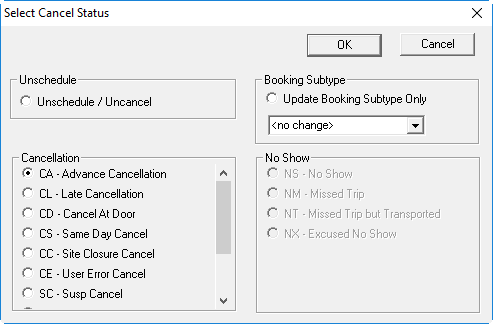
- In the Unschedule, Cancellation, or No Show frames, select the cancellation reason that best describes the situation.
-
To change the booking subtype of the canceled trip, in the Booking
Subtype frame, click a booking subtype in the list.
To change the booking subtype of a trip only if you do not want to cancel/uncancel it, select the Update Booking Subtype Only option to clear all cancel options and change only the subtype.
- Click OK.