
Searching for Bookings in Trip Administration
Access available booking information using Trip Administration.
Before you begin
About this task
Procedure
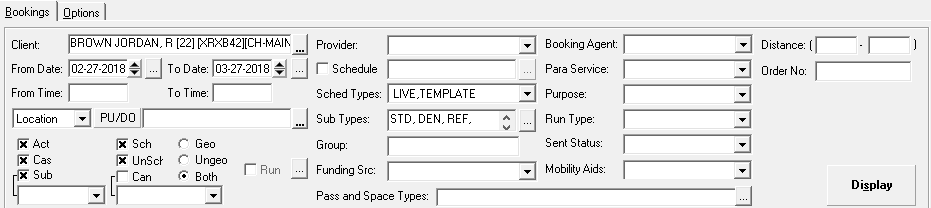
- Select the filters you need.
- Optional: Create your own query.
-
Click Display.
When the system is searching for trips, you can click Cancel at the bottom left of the screen to stop the search. Use this command if the search you have initiated is too wide or taking too long and you want to use additional filters to narrow the search.If a message indicates that there is a problem with the date range, click OK. Change the date range in the Fr Date and To Date fields, and then click Display. The date range cannot exceed the number of days specified by the Trip Admin Date Range system property, and the Fr Date must be earlier than the To Date.
What to do next

The original default search settings are restored and ready for your next selection criteria.