
Trip Administration Search Filters
Use search filters to show trips that meet specific criteria.
| Filter | Description |
|---|---|
| Client |
Finds bookings for a specific client. Select one of the methods to type a client in this field:
Note: In the Client field, when you enter or select a client
who is assigned the alert status, the name appears in the Client
Alert property color (defined in , on the Tools tab, click ).
|
| From Date/To Date | Searches for live bookings occurring on and within the specified dates. The current date is set as the default for both fields. Select one of the methods to enter dates in these fields: Trips from multiple days may appear in the search results.
For example, a trip booked for 26:30 on June 13th and a trip booked for 2:00 AM on June 14th could both appear when searching for trips on June 14th between the hours of 00:00 (From Time) and 11:30 (To Time). The end time of (the next) day defined for each day is set using the system property found in , on the System tab, under End time of day. |
| Location/Client/Polygon |
Finds trips with a pick-up or drop-off at a specific client address type, at a common location address, or in a defined polygon. Registered client addresses (for example, CH) that are also common locations will appear in common location searches. Pick-up and drop-off polygon information is pulled from the Leg Detail frame in Trip Booking (ORIGIN for pick-up and DESTINATION for drop-off).
Alternatively, click the ellipsis (…) button next to this field to display the Find Clients or Find Locations dialog box. (This option does not work for Polygons.) In the Find Clients dialog box, type the address in the address fields, choose the Address Type, and click Find to search for clients with the same address/address type. In the Find Locations dialog box, fill in the field(s) you want and click Find. Search results are shown in the middle grid. To select multiple locations or clients:
|
| Sub |
Shows all subscription trips (master records).
|
| Act | Shows all activated subscription trips. |
| Cas | Shows all casual trips. |
| Sch | Shows all trips that are scheduled. |
| UnSch | Shows all trips that are unscheduled. |
| Can | Shows all canceled trips. The Can list allows you to select one or more individual cancellation codes. To select specific codes, clear the Can check box and select codes
directly from the list. 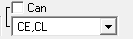 |
| Geo | Shows trips that have been geocoded. |
| Ungeo | Shows trips that have not been geocoded. |
| Both | Shows both geocoded and ungeocoded trips. |
| From Time/To Time | Shows bookings set between specified times. For example, bookings between the hours of 13:00 to 18:00. |
| Run | This check box and its button are enabled only after selecting a
live or template schedule.
|
| Provider | Allows you to select trips associated with a certain provider or with No Provider. |
| Schedule |
Allows you to choose a live or template schedule to display bookings for a specific live date or template day. Select the Schedule check box and then click the ellipsis button (…) to open the Select Schedule dialog box. Select a schedule before using the Run filter and before batch scheduling. If you choose a template day when viewing subscription bookings, the system only shows subscription bookings with weekly rules that include the specified day of the week. |
| Sched Types (Schedule Types) | Shows schedules by type (template, and live schedules). Select the appropriate check boxes. |
| Sub Types | Shows bookings by booking subtypes. By default, the choices are Demand, Regular, and Urgent. The default can be modified in user-defined properties (click and, on the Tools tab, click ). |
| Group |
Filters bookings created for groups defined in the Group Booking ancillary screen. In the Group field, type the code that was entered in the Group field on the Detail tab in Trip Booking. When you type a group name in the Client field in Trip Booking, this name is also generated in the Group field. For example, if the group name is AAA and you overwrite this name in the Group field with BBB, you must type BBB in this field to search for the group. To generate a list all defined groups, type an equal sign (=) and then select a group. |
| Funding Src (Funding Source) | Shows bookings for which selected funding sources are assigned.
In the list, click the required funding sources. |
| Pass and Space Types |
Filters trips according to passenger/space/fare type combination.
To avoid causing system performance issues, Trapeze recommends filtering the search using a date, specific client, or schedule. |
| Booking Agent | Allows you to select users in the list and view the bookings that they have created or modified on the specified dates. |
| Para Service |
Shows trips assigned in Trip Booking to a specific paraservice type. In the Para Service field, select the check boxes next to the paraservice types required. If you do not select any paraservice type, the system shows all trips. You can also select N/A to search for trips that have not been assigned to any paraservice type. |
| Purpose | Filters trips previously designated in Trip Booking for a
specific purpose. In the Purpose list, click one or more booking purpose types. |
| Run Type | Filters trips by one or more selected run types. |
| Sent Status | (For Live trips only) Filters one or more of the following
flags:
|
| Mobility Aids | Filters trips by one or more selected mobility aids. |
| Distance | Specifies a range within which the distance of the trip must
fall to be shown. Type the unit of measure used at your transit site. For example, miles or kilometers. |
| Order No | Specifies an ID or order number assigned to the group of trips on a cluster run. |
| Vehicle Type Exclusion | Specifies the vehicle types that cannot be used at the pick-up
or drop-off locations. Vehicle Type Exclusions are set for locations in Common Locations and for clients or client addresses in Client Registration. |
