
Changing Booking Information
You can change booking times, purpose, and comments for one or more trips in Trip Administration using the Change Booking dialog box.
Before you begin
About this task
Changing booking times for multiple trips can be useful with group trips. For example, if a program start time changes, you could find all trips that drop off at the program location, and set all arrival times to the new program start time. To ensure that trips with the same destination are grouped effectively, you could adjust the required pick-up times for the trips without changing the trip appointment time.
Procedure
- Search for the client for whom to change a booking.
- In the Trip Administration grid, select one or more trips for which you want to change times, purpose, or comments.
-
Do one of the following:
- Click .
- Right-click the selected trip(s), and then click Change Booking.
The Change Booking dialog box appears.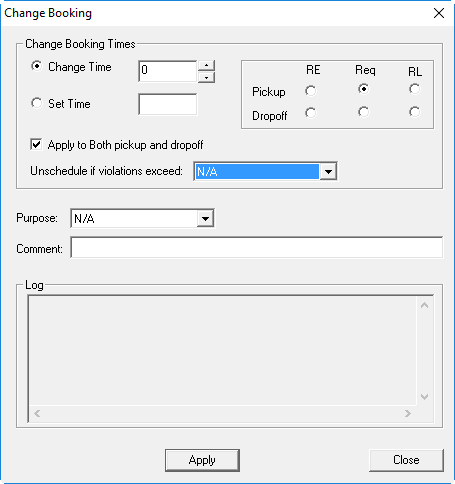
-
Select the time option for the pick-up (Pickup) or drop-off
(Dropoff) booking time to change:
Option Description RE Requested Early Req Requested RL Requested Late Select only one option. -
Select one of the following:
-
- Change Time
- Define the number of minutes from the currently set time to move the selected RE, Req, or RL time.
-
- Set Time
- Define the time to use as the selected RE, Req, or RL time.
-
-
To apply the time change to both the pick-up and drop-off times, select
Apply to Both Pickup and Dropoff.
When you apply a time change to both pick-up and drop-off times, the times are moved by the amount of time specified in the Change Time field or the difference between the time specified in the Set Time field and the current trip request time.
-
In the Unschedule If Violations Exceed list, click a violation
set, or select N/A.
If a time change causes violations in excess of those permitted by the specified violation set, the system unschedules the previously-scheduled trip. If you choose N/A, the system unschedules the trip if the time change results in a new or worse violation.Users must reschedule trips if they become unscheduled as a result of time changes.
- Optional: Select a booking Purpose.
- Optional: Add a booking Comment.
- Click Apply.
- Click Close.
- Optional: To view the new trip times in Trip Administration, click Display or press F5 to refresh the screen.