
Suppressing Trips to Prevent them from Being Copied
Suppress trips containing faulty or expired data so that they are not copied when creating future trips.
Before you begin
About this task
In Trip Booking, when you click the Get Information button to display the Client/Booking Info dialog box for a new booking, the Trip Confirmation tab shows suppressed bookings highlighted in a specified color. If you select a suppressed trip, the Copy button is disabled. If you do not want suppressed trips to be shown on the Trip Confirmation tab, from the View list, select Previous Trips, and then click the Show Unique check box. The suppressed trips are no longer shown.
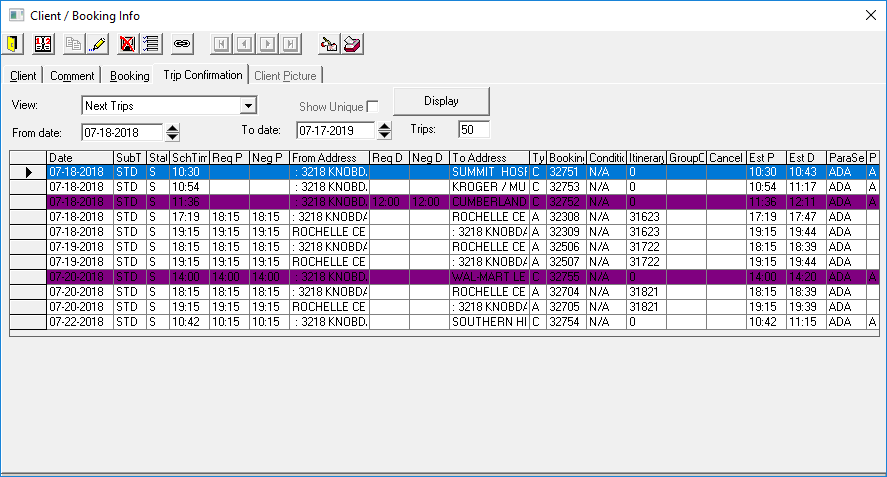
Suppressed bookings are not highlighted in Trip Administration and can still be copied using the Cut/Paste and Copy/Paste functions.
If you suppress all client trips to a location during the time period defined in , on the Profile tab, under , the location will no longer appear in client's Frequent locations list.
Procedure
-
Click .
The Trip Exclusion dialog box appears.
- Enter information in one or more of the available fields.
- In the Match Criteria frame, choose the AND (All match) option to locate an exact match. (Selecting the OR (Some match) option broadens the search to include trips that may match some of your search criteria and not others.)
-
Click Find.
The bottom grid shows bookings that match your search input.
- Optional:
Display a selected address on the map:
- Show the system map (press Ctrl + M).
- In the grid, highlight the row.
- Click Show on Map.
-
Highlight the booking to suppress, and then click
Suppressed.
To select multiple bookings to be suppressed, do one of the following:
- Click the upper left grid header cell to select all bookings
- Hold the CTRL key and click specific rows to select bookings
- Hold the SHIFT key and click the first and last row in a range of bookings
The selected bookings are highlighted in the color selected in the Suppressed Booking Background Color property (found in , on the Profile tab, Pass Booking Client section).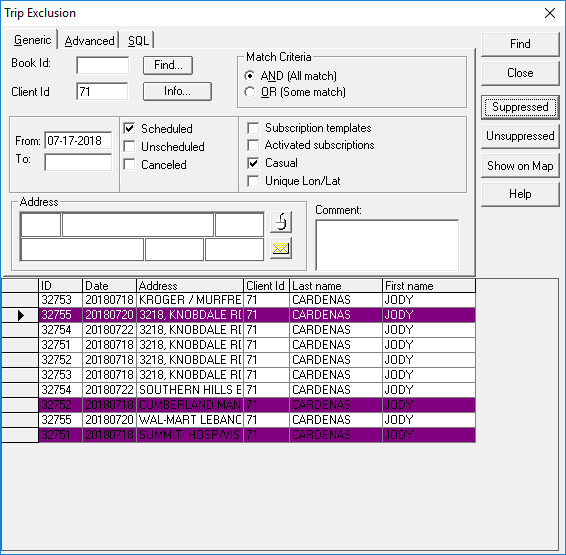
-
Click Close.
The Trip Exclusion dialog box closes.
What to do next
To unsuppress an address, in the Trip Exclusion dialog box, highlight a suppressed address and click Unsuppressed.