
Creating Trip Administration Search Queries
If desired, you can create your own queries to search for trips in Trip Administration.
Before you begin
About this task
For more information about PASS tables and fields, navigate to collaborate.trapezegroup.com and look for the Trapeze Insight DB-Schema Viewer in the Technology space.
To determine the storage location for extra queries that are created in this procedure, click , click the Profile tab, and click . Review the location for this folder and change it if necessary.
Remember to clear the BYOQ check box in the Options tab if you want to begin a new search in Trip Administration without using the query.
Procedure
- Click the Options tab.
-
Next to BYOQ (Build Your Own Query), click the ellipsis button
(…).
The Extra Query dialog box appears.
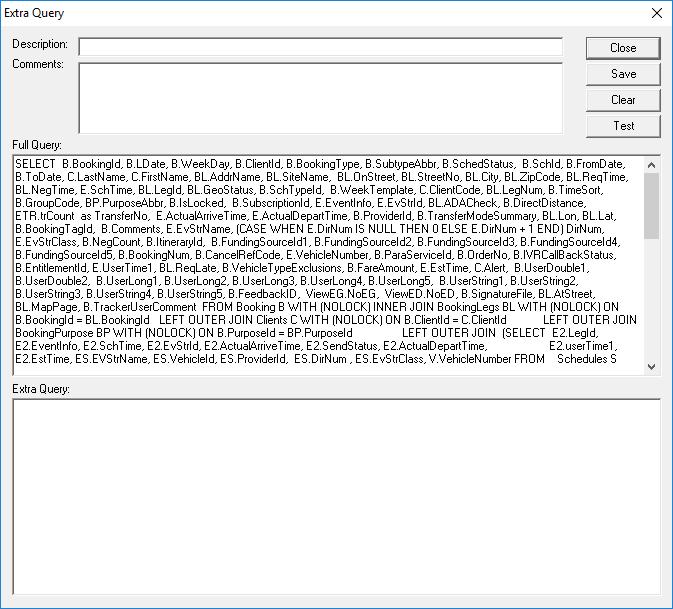
- In the Description field, type a description, which will be the file name for the query after it is saved.
- Optional: In the Comments field, type a comment about the query.
-
In the Extra Query field, type the query.
The Full Query field shows the current settings of the Trip Administration search filters in SQL format and is automatically updated as you type in the Extra Query field. You cannot edit the full query.
-
Click Test.
If the query is acceptable, a The query is OK message appears. If the query is not acceptable, a The Query is bad message appears.
- Click OK.
- If the query was bad, correct or type a new query and click Test.
-
When the query is accepted, click Save.
The full query with the extra query is saved as an *.XML file.
- Optional: To create another query, click Clear and provide a new Description, Comments, and Extra Query.
- When finished creating queries, click Close.
- Below BYOQ, select the check box and click the query in the list.
-
In the Bookings tab, click Display.
The system searches for trips according to the full and extra queries. Once you have saved one or more queries, you can use them in future sessions by selecting the BYOQ check box and then selecting the query.