
Viewing Schedule State Changes
View schedule state changes in Tracker Action Browser.
Before you begin
Procedure
- Click .
-
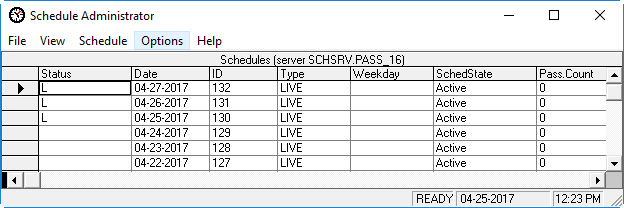
Click the Display Schedules button:

- Select a schedule.
-
Click the Tracker Action Browser button:

The Tracker Action Browser dialog box appears. -
Do one of the following:
Click this option And do this Run Click Display. Track Code In the Track Code list, select MODIFY. Click Display. All changes related to the Modify track code are listed in the grid. -
Look for records with the action: PASS/SchedStateChange.
Tracker Action Browser records show the date and time of the change, as well as the user who made the change.
-
When you have found a record, select it.
The Comments field describes the change that was made.