
Inserting Driver Breaks into Run Itineraries
Driver breaks can be manually inserted into run itineraries.
Before you begin
Procedure
- Open the view for the run itinerary to be updated.
- Locate the event closest to the time at which you want to insert a break.
-
Right-click (or click Edit) and do one of the following:
To Do this Insert the break so that it occurs before the selected event. Click Add Break Before. Insert the break so that it occurs after the selected event. Click Add Break After. The Add Break Before or Add Break After dialog box appears.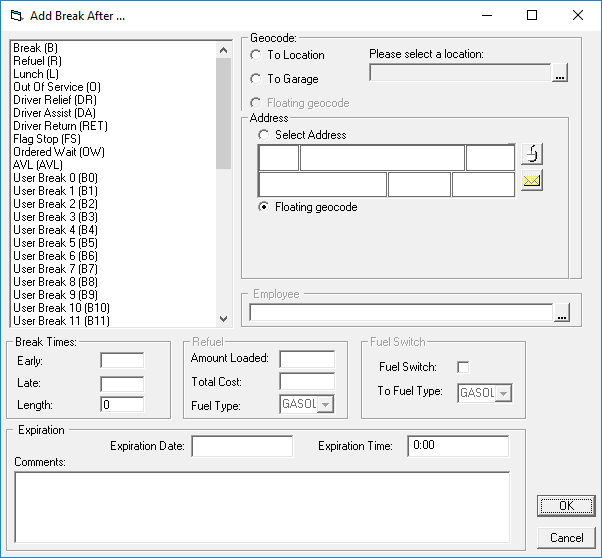
-
In the Break Type frame, select the option that best describes
the kind of break that the driver is taking. For example, Break,
Lunch or Refuel.
In addition to standard break types, there are a number of User Breaks that can be chosen.
To view or change the user break code (for example, B1), click , on the Profile tab, click . (This is done by a system administrator.)
If the driver break is a Refuel (R) break, fill in the following fields:- Amount Loaded
- Specifies the amount of fuel loaded into the vehicle.
- Total Cost
- Specifies the total cost of the fuel loaded into the vehicle.
- Fuel Type
- Specifies the type of fuel loaded into the vehicle (N/A, Diesel, or Gasoline).
(Optional) Indicate if the type of fuel has been switched by selecting the Fuel Switch option and selecting the To Fuel Type.
-
In the Break Times frame, fill in the following fields:
- Early
- Specifies the earliest time on the run that a break can be taken.
- Late
- Specifies the latest time that a break can be taken.
- Length
- Specifies the duration (in minutes) of the break.
For example, if you type 11:00 as the Early time, 13:00 as the Late time, and 30 minutes as the Length, then the 30-minute break can occur between 11:00 and 13:00. The exact time depends on the trips scheduled around the break. If you are updating a past schedule, you need to type the length of the break only.
-
In the Geocode or Address frames, assign
a location where the break takes place using one of the following options:
Option Description To Location In the search field, type the common location. For example, Benson Books. If the system is able to locate the entry in the database, the address appears in the address box.
To Stop In the search field, type the name of the stop. To use the To Stop option, select the Flag Stop (FS) break type.
To Garage In the search field, type the name of the garage. For example, AATA. Once the system has found a match to your entry, the address appears in the address box.
Select Address Type the address in the address box and geocode that address. Using a geocoded address will take into account the driving time.
Floating Geocode Allows the driver to take a break wherever the vehicle is located when the break begins. When you use the Floating Geocode option, the system makes no allowance for travel time to/from the break location. For example, if you set the length of the break at 30 minutes the driver could be scheduled for a pick-up as soon as the break is finished.
To incorporate travel time that does not compromise the break time, select Floating Geocode and set the break time to be a little longer than the actual break.
- Optional:
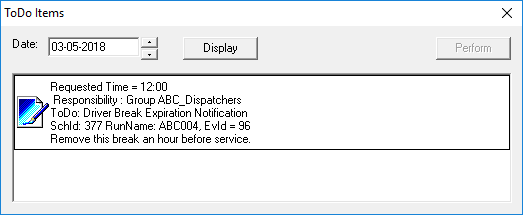
In the Expiration frame, add a To Do list item:
To do list items added from the Add Break dialog box are assigned based on the security user group defined in , on the Tools tab, under .
-
Type a Comment about the task to be completed by the
expiration date and time.
For example, if space is reserved in the run itinerary, a reminder may need to be set up to remove it at a later time.The to-do list item is added to the list (found under ) for users in the defined user group.
-
Type a Comment about the task to be completed by the
expiration date and time.
-
Click OK.
The Add Break Before/After dialog box closes and the break is inserted in the run itinerary.