Viewing Run Itineraries on the System Map

The run itinerary view shows a complete list of events scheduled to a specific run.

About this task
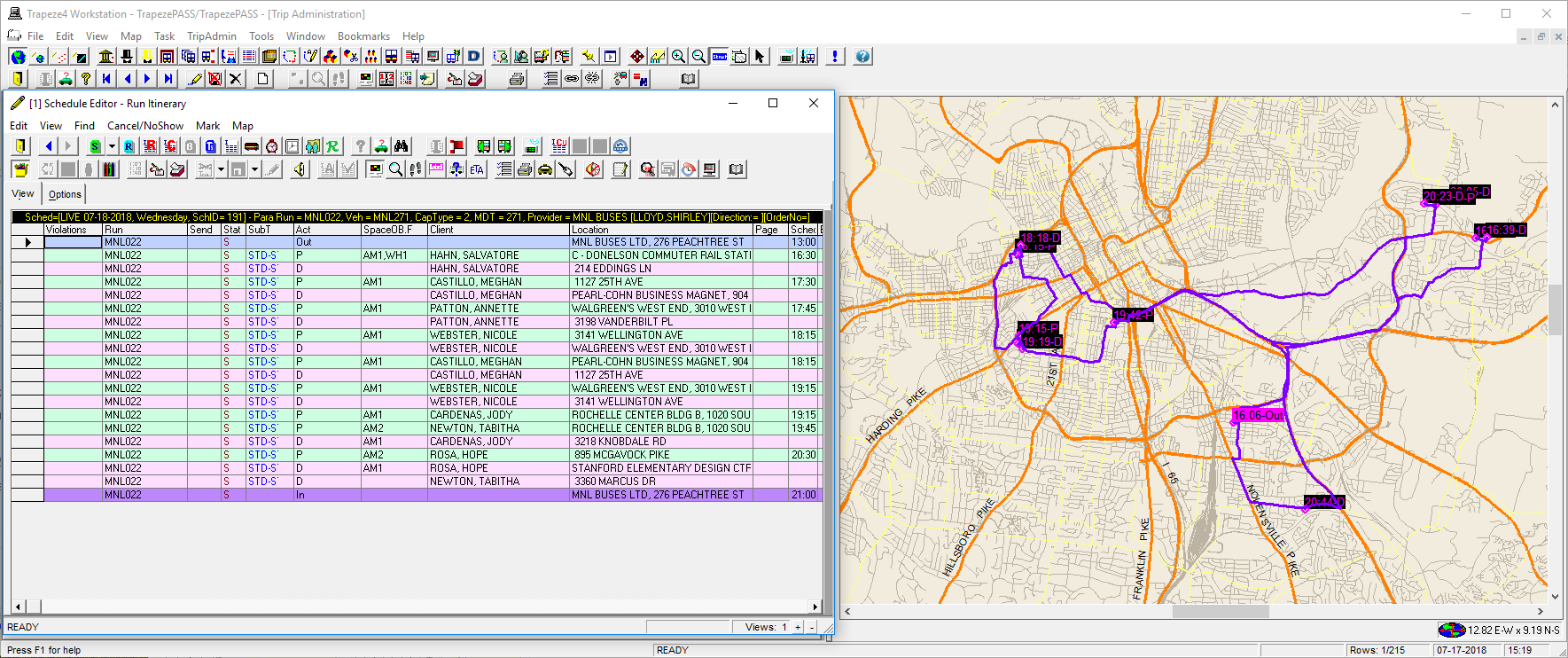
This view focuses on the current time in the current day’s schedule unless you click to it from a specific event. Not all information about an event is visible on the grid. Use the scroll bar or select the furthermost right cell of the event and tab to view additional information. When viewing a run itinerary, its events (for example, pull-outs, pick-ups, drop-offs, pull-ins, and so on) can be shown on the map, along with the estimated time of the event.

Schedule Editor's Run Itinerary view with events visible on the system map.
Run itineraries can also be viewed using Google Earth.

If desired, routing can be shown using street routing instead if the Street Route Traces for Runs property (found in File > Properties, on the Tools tab, under Schedule Editor > Street Route Traces for Runs) is enabled. Contact a system administrator for assistance enabling this property.

The color of the itinerary line is set in File > Properties, on the Tools tab, under Schedule Editor > Color Settings > Activity Map Color > Map: Color Current Run

Procedure

  1. Do one of the following:
    • Click View > System Map.
    • Press Ctrl + M.
    • Click the System Map button:
      Planet Earth.
    The system map appears.
  2. Click Tools > Schedule Editor.
  3. Click the Display Schedules button:
    S on green paper.
  4. Click a schedule in the Schedules grid.
  5. Click the Display Runs button:
    R on blue paper.
    Runs view appears.
  6. Click the Display on Map button:
    Computer monitor with three dots on it.
    Runs are shown on the map.
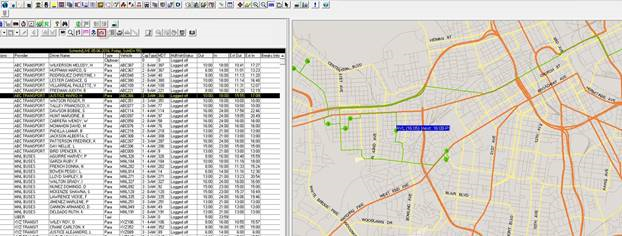
  7. To view multiple run itineraries, hold Shift to select adjacent rows, or hold Ctrl to select non-adjacent rows, and then click the row headers of the runs.
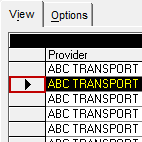
    Schedule Editor with a run row selected and the row header circled in red.
  8. To view the time and location of multiple events on the run itinerary, click the run to view, and then click the Display Runs Itinerary button:
    Small I and large R on three columns of lines.
  9. Optional: If AVL data is available, click the ETA button:
    The letters ETA.

Results

The vehicle location appears on the map:
Schedule Editor's Run Itinerary view with the vehicle location visible on the system map.