
Previewing a Run with Dragged and Dropped Trips
Previewing a run lets you see the effect of scheduling trips to a new run before saving the changes.
About this task
| Property | Description |
|---|---|
| , on the Tools tab, | Specifies whether the preview screen should automatically open
automatically when users drag and drop trips (Yes or No). Select Within Time Window to show the preview screen only if the booking time (negotiated or requested time) falls within the preview time window set in the Preview Time Window property. |
| , on the System tab, | Used with the Enforce Preview Mode
property. If the booking time (negotiated or requested time) falls within the preview time window set here, preview mode is automatically enforced. For sites using MDTs, make sure that the time typed here is greater than or equal to the MDT horizon (the period of time within which trips are sent to the MDTs). |
Procedure
-
Hold the Shift key while dragging one or more trips between
views or within a view.
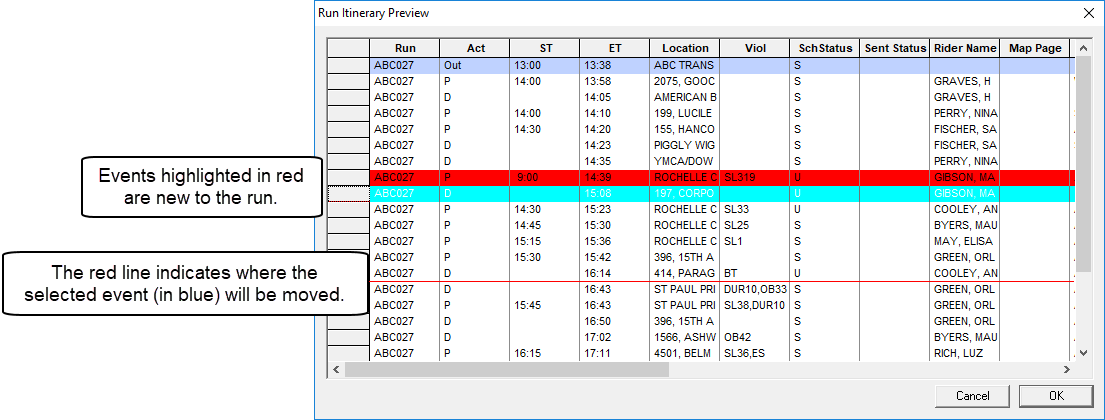
The Run Itinerary Preview dialog box appears. The preview shows how the itinerary would be changed if the events are to be dragged and dropped onto the run.
- Optional:
Drag and drop new events in the preview screen:
-
Click OK.
Click Cancel to close the preview.If the run changed while you were previewing the itinerary, a warning message will appear. The changes are committed to the run.