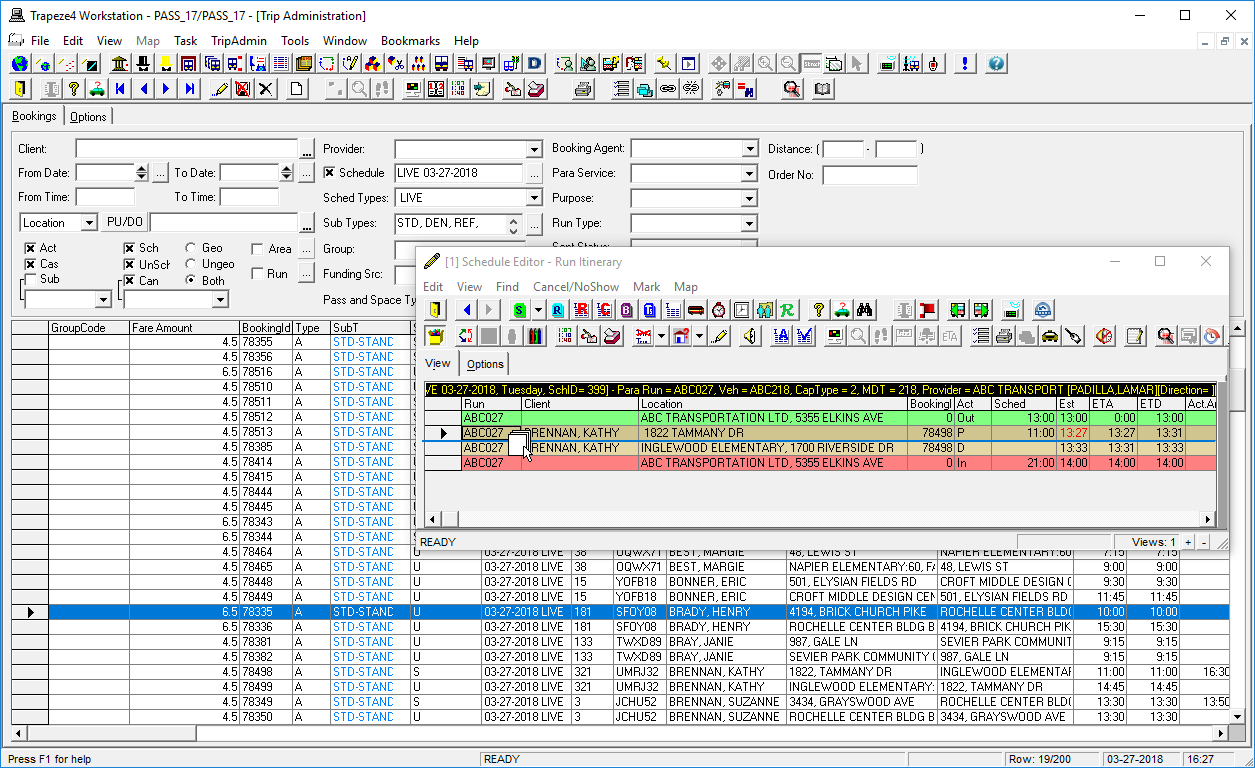
Scheduling Trips Using Drag-and-Drop Method 2
Multiple trips can be dragged and dropped to Schedule Editor from Trip Administration.
About this task
This is one of two methods you can use to insert an unscheduled trip.
Procedure
- Click .
- Locate the scheduled or unscheduled trip.
- Click .
-
Display the run itinerary of the appropriate run.
Resize or move Schedule Editor so that you maintain a clear view of the trip to be scheduled in Trip Administration.
-
Drag and drop the trip(s) from Trip Administration to the Run
Itinerary grid. (Drop the trip between the two rows where the pick-up and
drop-off events of the trip is to be inserted.)
The mouse pointer shows the insertion point (for example, between the last trip event and the pull-in).The trip is now scheduled to the selected run. For example, run ABC003.