
Scheduling Trips Using Drag-and-Drop Method 1
The drag-and-drop method is used in Schedule Editor to resequence events within a run, to insert an unscheduled trip into a run itinerary, or to move a trip from one run to another run.
Before you begin
About this task
This is one of two methods you can use to insert an unscheduled trip.
Procedure
- Select the appropriate schedule.
- Click the + button at the bottom right corner of the screen to add another window. Schedule Editor shows two identical windows, each showing loaded schedules.
- Click the title bar of the top window (the window with the highlighted title bar is the active window).
-
Click the Display Trips button:

All unscheduled trips are listed in this view. -
Click the title bar of the bottom window:
- If you have a specific run in mind, click the Find button,
select the Runs option, and type the run number.
The run itinerary is shown.
- If you have no specific run in mind, click the Display All Scheduled
Events button:

All scheduled events for the selected schedule are shown by order of run.
- If you have a specific run in mind, click the Find button,
select the Runs option, and type the run number.
- In the Unscheduled Trips view, locate the unscheduled trip.
- Position the mouse pointer over the trip’s pick-up event.
-
Click and while holding the left mouse button down, drag the trip to a spot on the run
where the trip is to be inserted.
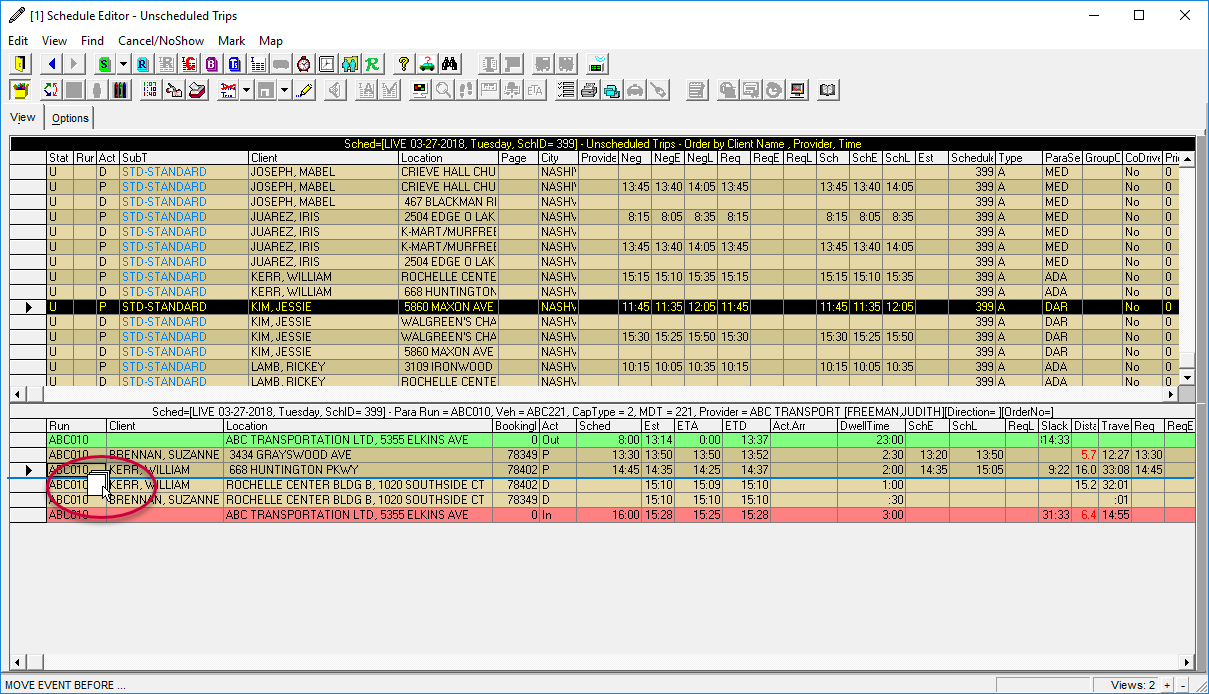
The mouse pointer turns into a page symbol. Placing the pointer slightly above an event inserts the trip to occur before this event while placing the pointer slightly below an event inserts the trip to occur after this event. -
Release the mouse button to drop the trip into the schedule.
The pick-up and drop-off events are moved together. However, you can resequence the drop-off event to a more convenient location on the schedule if needed.
Results
Keep in mind that you can also drag an event from one run (for example, Run 60) and drop it in another run (for example, Run 61).