
Defining a Fare Code Modifier Job Using the Recalculate Fare Method
The Recalculate Fare method allows you to update all future bookings using a selected fare type with recalculated fares.
Before you begin
Schedule Job Agent must be open.
About this task
Procedure
- Select a job from the grid.The scheduled job record settings are shown in the Job Schedule frame.
- Confirm the Agent Name PassScheduleAgent is defined for the job schedule.The selected agent determines the options that are available in the Job Type field.
- Click Job Data.The Job Data dialog box appears.
-
Define the schedule type and date information:
- In the Job Type field, select Fare Code Modifier. If no Job Types are available, confirm that an Agent Name has been selected in the Job Schedule frame of the Schedule Job Agent dialog box.
-
Click New.
The New Batch dialog box appears.
-
In the Client Record Fare Code Update Method frame, do the
following:
-
In the first list, click Recalculate Fare.
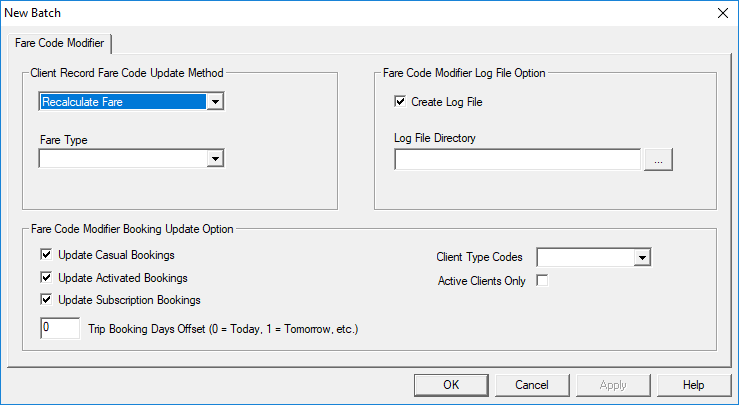
- Select a Fare Type.
-
In the first list, click Recalculate Fare.
-
In the Fare Code Modifier Log File Option frame, do the
following:
-
In the Fare Code Modifier Booking Update Option frame, do one or
more of the following:
- Optional:
Select specific Client Type Codes for which to apply the
updates.
Client type codes are defined for clients in Client Registration on the Detail tab.
 If no Client Type Codes are selected, all client types will be updated.
 - Optional:
Select Active Clients Only to apply the fare recalculation only
to active clients.
Inactive status is defined for clients in Client Registration on the General tab.

If the InActive option is cleared and no inactive reason is selected, clients are defined as active. - Click OK.
-
Click OK.
The Job Data dialog box closes.
- Click Save.