
Creating Date Interval Rules for Subscriptions
Use date interval rules to specify that a subscription trip occurs on specific days of the week, specific dates in a month, or at other defined intervals.
Before you begin
About this task
- Define the regular intervals at which the subscription booking is to be activated
- Suspend the trip on days of exception. For example, holidays.
- Activate the subscription booking on miscellaneous dates on which it would not typically occur.
Procedure
- Select a client for whom to book a subscription trip and create the booking.
-
Click the Calendar button:

-
Choose a Rule Type in the cell in the empty row denoted by an
asterisk (*). Usually, a weekly rule is best.
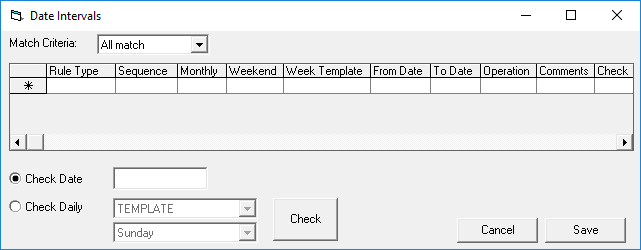
The asterisk is replaced by an edit symbol. - Define the rules for the selected rule type.
- In the From Date field, enter the first date on which the subscription is to be activated.
- Optional:
In the To Date field, specify the last date on which the
subscription is to be activate.
If there is no definite end date to the subscription, leave the field blank.
-
In the Operation list, click
Active.
If no selection is made, the date interval rule is Active by default.
- Optional: In the Comments field, type a comment about the date interval.
- Define any additional rules.
-
When you have defined all rules, in the Match Criteria list,
click one of the following options:
-
- All match
- The subscription booking is only activated on the days when all rules that are active are in effect.
-
- Some match
- The subscription booking is activated on the days when at least one of the rules is in effect.
-
-
Click Save.
The Date Intervals dialog box closes.