
About the Client and Booking Info Dialog Box
The Client/Booking Info dialog box automatically appears when you create a booking on a date for which the client has existing bookings.
- View a client’s profile, booking history, and upcoming trips.
- Create new bookings by copying from previous bookings.
- Edit, cancel, or link client trips.
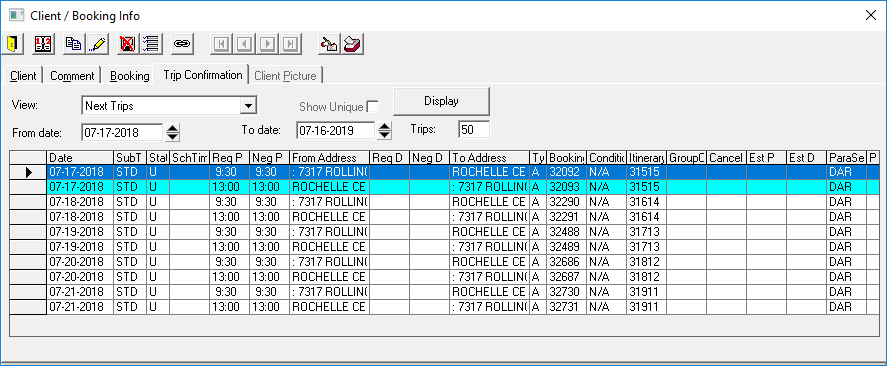
The Client/Booking Info dialog box consists of five tabs:
- Client
- Shows read-only information about the client.
- Comment
- Shows comments entered on the Comment tab in the client record.
- Booking
- Shows detailed information about any booking selected on the Trip Confirmation tab.
- Trip Confirmation
- The View list shows the following options: Today Trips, Next
Trips, Previous Trips, Subscriptions or Call Summary. Select the type of trips to see
in the list in the View field. Specify the From
Date and To Date.
If required, in the Trips field, type the number of trips to be shown in the grid (the default is 10 ).
The column order can be customized. Highlight a column by clicking on its header (the pointer turns into a down arrow) and drag the column to the appropriate position.
- Call Summary
- Intended for users who, immediately after saving one or more trips for a client in
consecutive order, want to view a summary of all of the trips booked in the current
Trip Booking session.
If Trip Booking is closed or if you create a booking for another client between the current client bookings, the Call Summary field is cleared of the client’s bookings.
This option is only used when accessed in Trip Booking.
- Client Picture
- Shows a picture of the selected client, if one is available.