
Creating a New Booking by Copying From a Previous Booking
Trip Booking allows you to duplicate booking details from a previous booking for a new booking.
Before you begin
Procedure
-
Click the Add New button:

- Search for and select the Client.
-
Click the Get Information button:

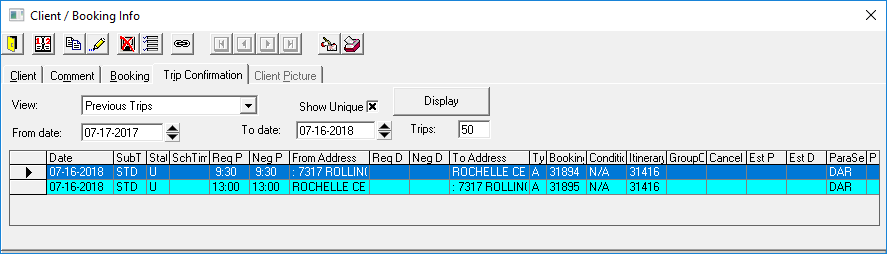
The Client/Booking Info dialog box appears. - Click the Trip Confirmation tab.
- In the View field, select Previous Trips.
-
Specify the From Date and To Date.
The trip to be copied should fall within these dates.
- Optional:
Select the Show Unique check box.
Selecting this option omits bookings that contain the same trip information as other bookings.
- Optional: In the Trips field, type the maximum number of trips to be shown in the grid.
-
Click Display.
Bookings that meet the defined criteria appear in the grid.
-
Highlight the booking to be copied and click the Copy selected booking data
into current booking button:

The Client/Booking Info dialog box disappears and a duplicate booking appears in Trip Booking. - Make changes to the booking as needed.
- Click the Save button:
