
Scheduling a Booking with the Quick Schedule Booking Wizard
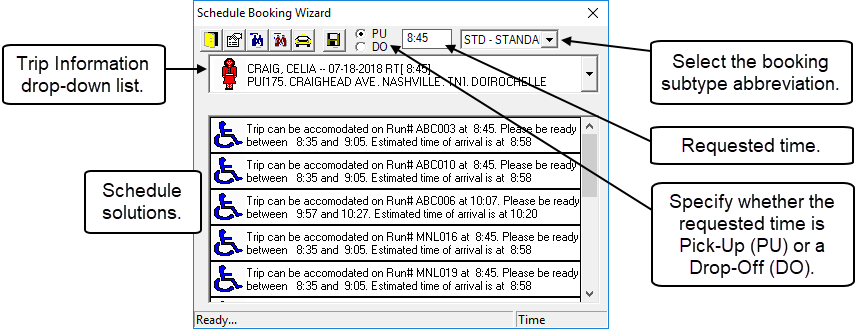
Once the Quick Schedule Booking Wizard screen appears, a list shows trip information for the selected booking directly under the toolbar.
About this task
Trip information appears in the following format:
Client -- Date, RT [requested time value], Run [Run number], PU [pick-up address], DO [drop-off address]
The field below it shows run solutions generated for the booking. Some reformatting of this script may be performed by a system administrator.
Procedure
-
If more than one trip is selected, click a trip in the Quick Schedule
Booking Wizard list.
-
Click the Find Solutions button:

To include taxi runs or to search for solutions within an expanded window, click the Find Taxi Runs or Find More buttons. - Click a schedule solution in the list.
-
Click Save.
The information from the schedule solution is then transferred to the Trip Information drop-down. The text used to display trip information turns blue.
- Click Exit.