
Scheduling Bookings for Multiple Days
If you have a booking that is to be repeated on multiple days, you can create the bookings and schedule them together.
Before you begin
About this task
Procedure
- Select the booking.
-
Click the Schedule button:

The Schedule Booking Wizard shows the booking you have just created for each individual day you have chosen. All the trips in the following example come from one booking for one client (Margaret Bauer). Notice that the pick-up and drop-off locations are the same for each booking and the requested times are the same as well. Only the date for each booking is different.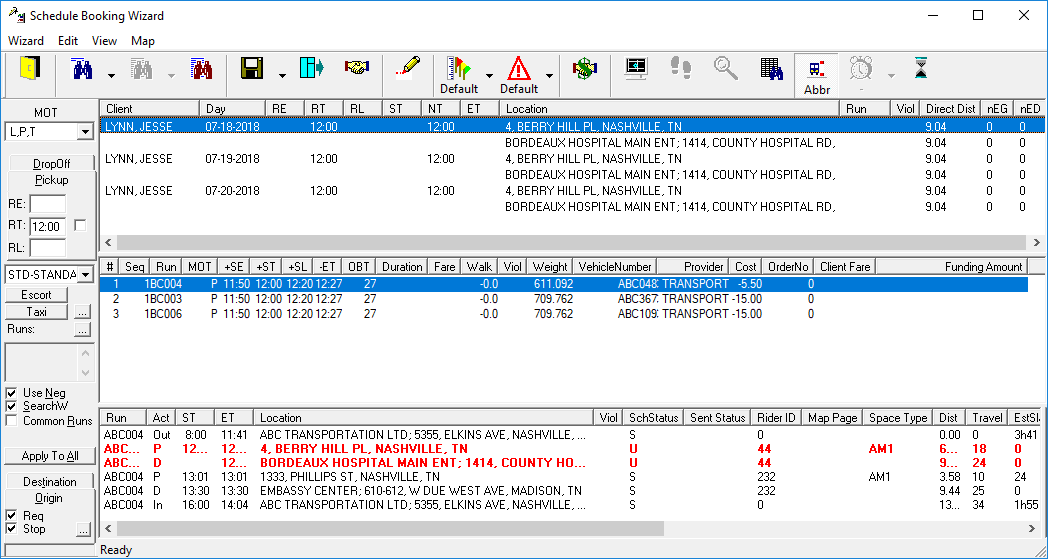
- Select the first client booking and schedule it.
- Schedule the second client booking.
- Schedule any additional client bookings.