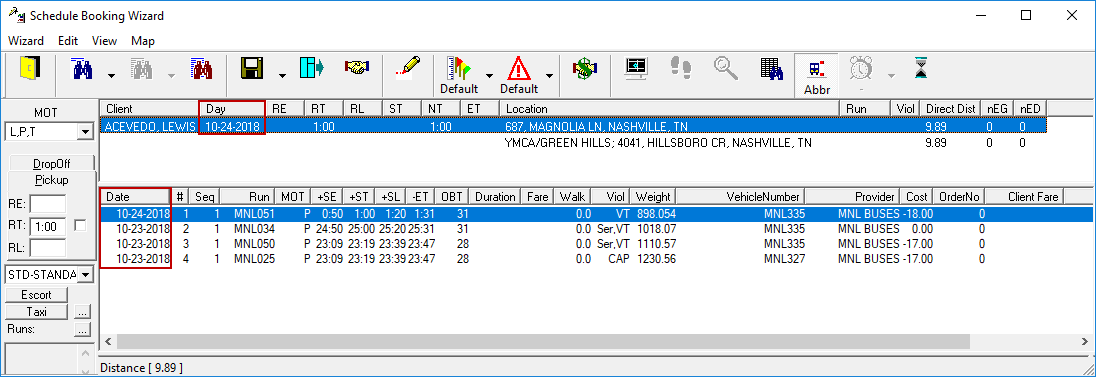
About Scheduling Bookings Using Double-Day Logic
Schedule Booking Wizard can be set up to offer solutions for multiple days when runs can service the trip on either of two overlapping schedules.
If a transit agency's service day is 30 hours long, and a trip is scheduled between 24:01 and 30:00 or 0:00 and 6:00, the trip can now be seen and scheduled for either day in the overlapping schedule.
If the system is set up to use double-day logic, scheduling is done using the Schedule Booking Wizard.
Required Settings
- In Trapeze6 Client Shell, on the Properties tab, must be set.
This context property enables double-day functionality in the Schedule Booking Wizard. This includes adding a Date column and allowing Schedule Server to handle Provider Security if no runs are selected in the Runs screen.
-
In the Trapeze4 Workstation, under , on the System tab, the End time of the day and Start time of the day properties should be set to times that work for a day more than 24 hours long.
For example, the End time of the day might be set to 3:00 and the Start time of the day might be set to 0:00.
-
Runs should exist in the system for the overlapping period on both the current day and the following day.
For example, one run might have a From Time of 18:00 and a To Time of 26:00 on one day, and another run might have a From Time of 00:00 and a To Time of 8:00 on the following day.
Setting Up Trips
-
In , set up a booking for the client.
To see double-day booking options, the trip time must fall in the window of time where the two days overlap. For example, if a 30-hour day is used (starting at midnight), then the period between 24:01 and 30:00 and the period between 00:00 and 6:00 would overlap. A booking with an REQ of 1:00 could return scheduling options for both days.