
Searching and Geocoding Using Matching Addresses
You can search for matching street addresses, locations, and points on a map.
About this task
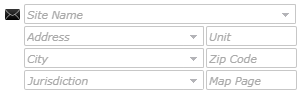
For example, to limit matches to locations with a score of 100 or lower, set the value to 1000.
Procedure
-
(If applicable) To search for a location, enter the location name in the
Site Name field.
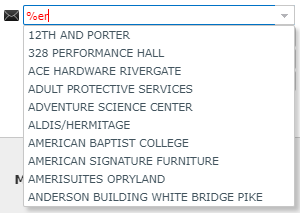
The system uses a text search when searching for location names. If you do not use the correct spelling when searching for a location name, the system cannot return the correct location. However, if you enter only part of the location name, you can use the percent sign (%) as a wild card character.For example, to find a location whose name ends with er, you can enter %er as the search criterion.
-
(If applicable) To match an address, enter the address in the
Address field in the following format:
<street number>
            <street name>
You can enter part of an address to increase the likelihood of finding a match. If you enter 985 Main in the Address field instead of 985 Main St, the system returns a list of all addresses that start with 985 Main, such as 985 Main St, 985 Main Blvd, and 985 Main Pkwy, if they exist in your map.
If you search for an address that is associated with a common location, you might have the option to choose either the street address or the location name, depending on your system settings. For more information, contact your system administrator.
If the service area is large or the street name is common, you can refine the search results by also entering the City and the Zip Code. The information that you enter when you geocode an address in the Manage Bookings screen is printed on manifests.
In general, entering more information refines the search and returns fewer results. Entering less information broadens the search and returns more results. You are not advised to enter both a site name and an address in the same search.
If the Address Matcher returns results that match the search terms, you can select the appropriate geocode. If you cannot find the correct address or location, you must enter coordinates or geocode the address manually.
-
Click the Find button beside the Site
Name field:

The system lists matching locations or addresses and shows their geocodes on the map.In the results list, addresses with lower scores are more likely to be the address you are trying to geocode.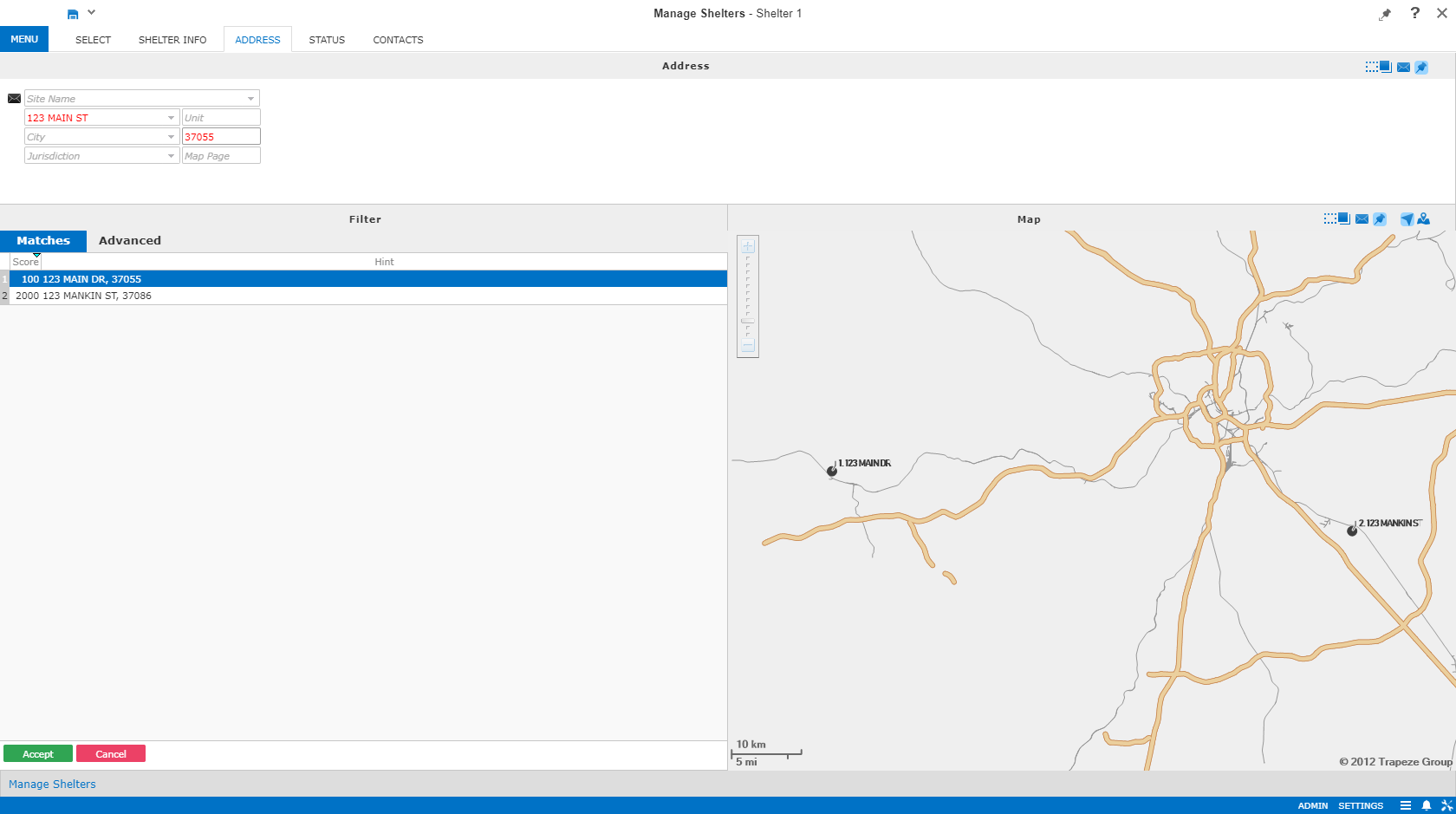
-
In the Matches tab, select the correct geocode.
In the results list, the Score column shows the relevance, or closeness, of each match. A lower score value indicates a closer match. For example, a score of 0 indicates a very close or exact match.
If multiple addresses or locations are returned, the results are sorted in descending order by relevance score by default. However, you can sort the results in ascending or descending order using either column by clicking a column heading.
-
Click Accept.
The selected address or location information appears in the Address fields.
- Click Save.