
Viewing and Editing Runs in all Exception Combos
In some cases when you make a slight adjustment to a run, you may need to apply the change to all exception runs. To apply the change to all exception runs at the same time:
-
On the Run screen, click BlockBuster > View
Exception Runs.
The Run dialog appears.
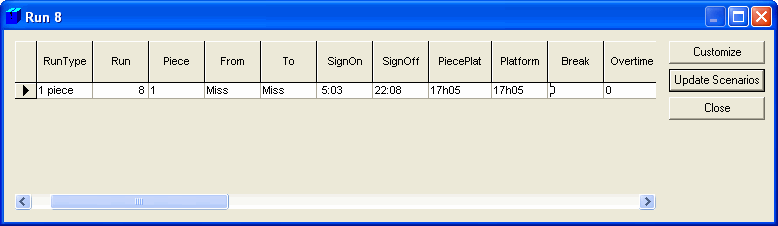
- To manage the way runs are displayed, click Customize. See Customizing the List View for more information.
-
Click Update Scenarios.
A message box appears asking if you want to recut the run in all exception scenarios.
-
Click Yes.
The Generate Exceptions Run dialog appears.
- To automatically ensure that the generated exception runs keep the run type set as the default, select the Force Run Type check box.
- Click Start.