Checking Block Integrity
Verify that blocks are complete using the Block Integrity feature.
-
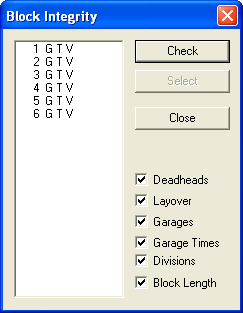
Select the check boxes of the items you want to
check:
- Deadheads - Identifies blocks with missing or out of range deadheads.
- Layover - Checks if the layovers are within the ranges set in the Blocking properties.
- Garages - Identifies blocks that have not yet been assigned garages.
- Garage Times - Checks if the first trip of the blocks has a pull-out time and the last trip has a pull-in time.
- Divisions - Identifies blocks that have not yet been assigned to a division.
- Block Length - If you select Block
Length, the Block MaxSpan Time dialog box appears.
The option identifies blocks that are longer than the set maximum time span.
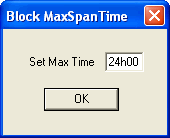
- Enter the maximum time span you want and click OK.
-
Click Check.
The block numbers of the blocks with integrity problems appear on the left frame with the appropriate error code.The following graphic shows the sample blocks that have problems with their Garages (G), Garage Times (T), and Divisions (V). The codes indicate that the blocks have not yet been assigned garages nor divisions.